User Help System
Manual Fee Adjustment Instructions
The Manual Fee Adjustment template is used for submitting adjustment requests for scenarios that cannot be updated automatically within the Exchange Fee System (EFS).
Downloading the Fee Adjustment Template
The Manual Fee Adjustment Template for each Exchange is located on the Exchange’s homepage. Click on the hyperlink ‘Adjustment Template’ to download the template. The Fee Adjustment template has two types of worksheets: Position Transfer Rebate and Rate Adjustment.
- The Position Transfer Rebate template should be used to request an adjustment associated with position transfer fees charged in excess of any applicable caps, which are not automated within EFS. Note: This worksheet is not applicable for DME.
- The Rate Adjustment template should be used to request an adjustment associated with incorrect rates applied that cannot be updated within EFS. Note: any adjustment that CAN be processed through EFS MUST be processed through EFS. This template is for the exception cases only.
Entering data into the Position Transfer Rebate worksheet
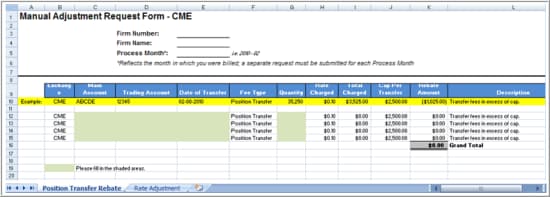
- Select the Position Transfer Rebate worksheet.
- Enter the Firm Number, Firm Name and Process Month (YYYY - MM).

- Continue to enter the appropriate information in the shaded areas (refer to example highlighted in yellow).
|
Field |
Cell |
Description |
|---|---|---|
|
Main Account |
C 12 |
A ‘grouping account’ created by firms to associate trading accounts with identical account ownership; enter the Main Account where the positions reside. |
|
Trading Account |
D 12 |
The trading account received from CME Clearing; enter the trading account where the positions reside. |
|
Date of Transfer |
E 12 |
The date the position was transferred. |
|
Quantity |
G 12 |
Quantity of positions transferred. |
For any additional line items repeat step 3.
- After completing the Manual Adjustment Request worksheet; save the adjustment template.
NOTE: The adjustment worksheet will need to be attached to the manual adjustment request submitted through the Adjustment screen.
Entering data into the Rate Adjustment worksheet
- Select the Rate Adjustment worksheet.
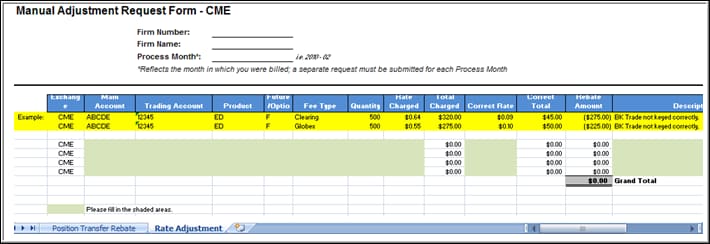
- Enter the Firm Number, Firm Name and Process Month (YYYY - MM).
- Continue to enter the appropriate information in the shaded areas (refer to example highlighted in yellow).
|
Field |
Cell |
Description |
|---|---|---|
|
Main Account |
C 13 |
A ‘grouping account’ created by firms to associate trading accounts with identical account ownership; enter the Main Account associated with the adjustment request. |
|
Trading Account. |
D 13 |
The trading account received from CME Clearing; enter the trading account associated with the adjustment request. |
|
Product |
E 13 |
Product Code |
|
Futures/Options |
F 13 |
|
|
Fee Type |
G 13 |
See Appendix I for a list of Fee Types. |
|
Quantity |
H 13 |
Quantity to be adjusted. |
|
Rate Charged |
I 13 |
Rate charged that was deemed incorrect. |
|
Correct Rate |
K 13 |
Please refer to the applicable Exchange’s Fee Schedule to identify the correct rate. |
|
Description |
N 13 |
Description of the reason for the adjustment request. |
For any additional line items repeat step 3.
- After completing the Manual Adjustment Request worksheet; save the adjustment template.
NOTE: The adjustment worksheet will need to be attached to the manual adjustment request submitted through the Adjustment screen.
Attaching the Manual Adjustment Worksheet Template
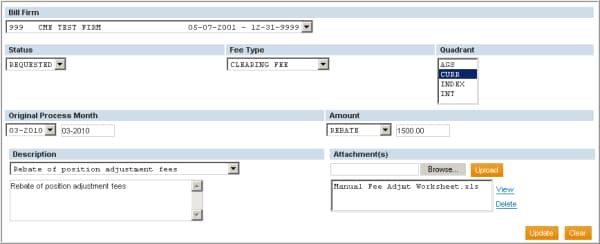
To submit the manual adjustment request and attach the completed template, go to the Adjustment screen within the appropriate Exchange. Complete the Adjustment request:
- Select the Bill Firm.
- Status will default to Requested.
- Select the Fee Type.
- Select the product Quadrant (Note: This displays as Product Venue for NYMEX/COMEX; this field does not apply for DME).
- Select the Original Process Month (MM - YYYY).
- Enter an Amount after selecting whether the adjustment represents a Rebate or Assessment.
- Select a reason for the adjustment from the pre-populated drop-down list or type the reason in the Description text box.
- To add an attachment click Save/Attach.
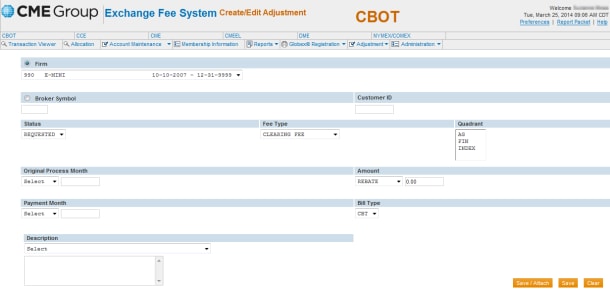
After selecting the Save/Attach button, an Attachment(s) section will display.
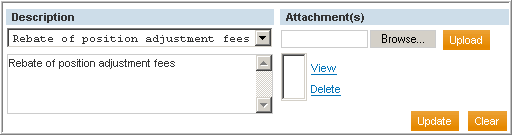
- Click Browse. The Choose file window will display.
- Locate and click the saved file.
- Click Open.
- Click Upload.
The filename will appear in the attachment list. Repeat these steps for any additional attachment(s).
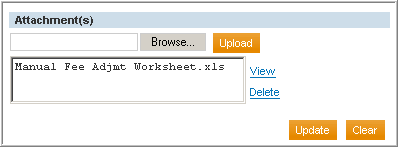
After completing the Manual Fee Adjustment screen, click Update to save the adjustment request with the attachment(s). A confirmation message will display that the Adjustment has been updated.