User Help System
Adding Individuals
To register an Individual Operator ID, select Individuals from the Globex Registration sub-menu. The Individuals page appears.
 : For an overview of Globex Registration - Individual functions, view this video tutorial.
Creating Individual
Before registering the Operator ID, Users will register all of the required personal information for an electronic trader in the Individuals screen. An individual must be added to the guaranteeing firm only once and will then be available in the individual list for any future updates.
- This list is unique to the User’s guaranteeing firm.
- Any members added to the guaranteeing firm do not have to be re-added when membership status changes occur.
- This screen is used to enter information for individual traders as well as individuals who are a part of an ATS Team.
- To enter information for an Individual:
- Select a guaranteeing firm from the list.
- Input the First and/or Last name in the field Individual Name Contains.
- The system will suggest possible matches from the list of individuals that already exist at the selected guaranteeing firm.
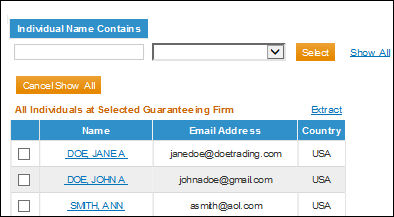
- The Show All hyperlink can be used to search individuals at the selected guaranteeing firm.
When using the Show All feature, use the text field to enter three or more characters, then select the hyperlink for Name to be directed to the Individual Details for that individual.
To return to the previous screen, select Cancel Show All.
- When viewing the Show All link, use the Extract hyperlink to extract all individuals currently listed for the selected guaranteeing firm.
Show All Link
- If the Individual name appears in the drop-down, highlight that name from the list and choose Select. The screen will refresh to display the Individual Details for that individual where the User can continue the process of adding an Operator ID (see Registering an Individual Operator ID).
- If no match is found, select Add New to associate a new individual with the selected guaranteeing firm.
Individuals Page

Membership System Matches
The screen will be updated and based on the previous entry, will display potential Membership System Matches for individuals that already exist in the CME Group Membership system. This list will include Members, CME and CBT Clerk for Members and NYMEX Power of Attorney.
- If individual is in the Membership System Matches list click Add next to the corresponding row to associate with the selected guaranteeing firm and proceed to enter an Operator ID for this individual (see Registering an Individual Operator ID).
- To verify the correct individual has been selected, use the View Details hyperlink to view member details for the associated Exchange or Incentive Program. Click Close to return to the Membership System Matches.
View Details Link

- If information was entered in error, click Cancel to clear the page and return to the Individuals list.
- If no match exists, proceed to the Manual Entry section of the screen.
Membership Matches

Manual Entry
If individual is not listed in the Membership System Matches section, personal information should be entered in the Manual Entry section. (Required Fields are marked by an asterisk).
- Enter the First Name, Middle Initial, Last Name and Suffix in the appropriate fields.
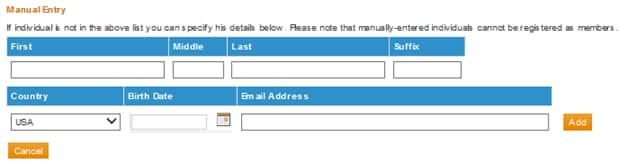
- Select a Country from the drop-down which represents where the trader is located (defaults to USA).
- Enter Date of Birth (required) in the format of (MM-DD-YYYY) or select from the calendar control.
NOTE: Individuals must be at least 18 years old.
- Input the individual’s email address (optional).
- Click Add to continue. The User will receive a confirmation message stating that the individual has been successfully added.
- If something was entered in error, click Cancel to clear the page and return to the Individuals page.
- When manual entry is complete, proceed to Registering an Individual Operator ID to continue.
NOTE: Manually-entered individuals cannot be associated with a Tag50 ID using a Registration Type of Member, Clerk for Member or NYMEX Power of Attorney.
Individual Details
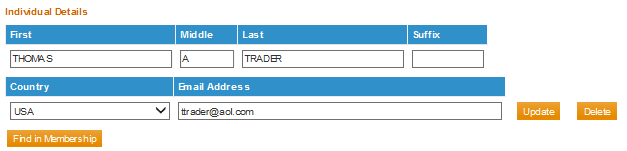
After identifying a Membership System Match or completing a Manual Entry, the screen will refresh with Individual Details displayed. If the User is viewing an individual who had already been added to the firm’s list, this page will also display Registered Operator IDs and Assigned ATS Teams with which this individual is associated.
- To revise personal information input text in the associated Individual Details field and click Update.
Date of Birth does not appear on the screen and cannot be edited in EFS.
- Upon manually entering an individual, the User may click Find in Membership to search Membership System Matches to convert to a membership individual at any time.
- To remove this individual from the guaranteeing firm list and return to the Individuals page, click Delete.
Individuals Screen
The screen will display the following information:
- Registered Operator IDs with which the individual is currently associated.
- When no IDs have been associated with this individual the screen will display Individual is not directly associated with any Operator IDs.
- To view Expired Operator IDs, check the Include Expired Operator IDs checkbox.
- Click the link for an existing registered operator ID in the list to view or update that registration (see Editing Operator IDs).
Registered Operator IDs

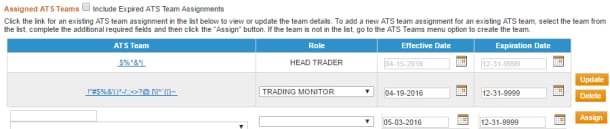
- Assigned ATS Teams with which the individual is currently associated.
- When no ATS Teams have been associated with this individual the screen will display Individual is not assigned to any teams.
- To view expired team assignments, check the Include Expired ATS Team Assignments checkbox.
- Click the link for an existing registered ATS Team in the list to view or update that team (see Editing ATS Team Information).
Assigned ATS Teams