User Help System
Adding an Attachment
- To add an attachment:
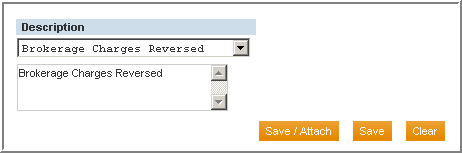
- Click the Save / Attach button. A confirmation message will appear along with the Attachment(s) section.

- Click Browse. The Choose file window will display.
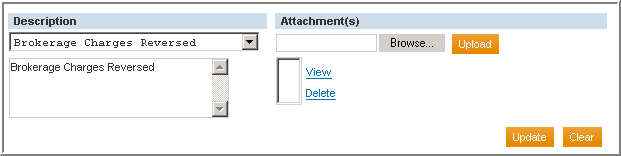
- Locate and click the file to attach.
- Click Open.
- Click Upload. The filename will appear in the attachment list and a confirmation message will display. Repeat these steps for any additional attachment(s).
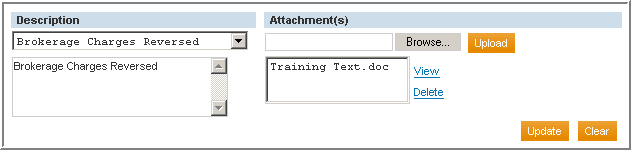

- Click Update to complete the attachment process.
- To view the file, highlight the file name and click View.
- To remove the file, click Delete.
- To create another adjustment, click Clear.


