User Help System
Using the EBS Keypad
Navigate the Workspace, move between input fields and other elements within each card, send trades, edit orders, and modify settings using the EBS Keypad, a keyboard, or a mouse or any combination of the three.
The EBS Keypad is the fastest and easiest way to navigate the Workspace and trade once users set up their Workspace layout and become familiar with working with Cards.
Enabling shortcuts for the Keypad make execution of trades even easier.
- To begin using the EBS Keypad
- Attach the Keypad to the computer by plugging in the USB cord.
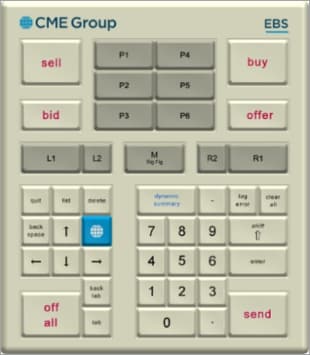
NOTE: The EBS Keypad comes with additional keycap substitutions for the L1 and R1 keys (ICE BID / L1, ICE OFFER / L2, BUY REG / R1, SELL REG / L1) and L2 and R2 keys (page up, page down). Use the wire pull tool to replace key caps more easily.
"Focus" in the Workspace
Whenever a Card, field, or option is selected or highlighted using the Keypad (or mouse or keyboard), that element said to be "in focus." Any actions that are taken apply to editable attributes of the in-focus element.
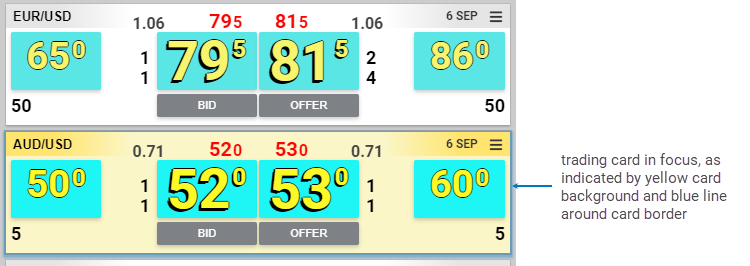
A Trading Card is in focus when the background color of the card is yellow and there is an outline around the card. Note that a Trading card can also be Active but not in Focus. A Trading card is active when its highlighted in yellow even when the Focus is on a different non-trading card. In the example below, AUD/USD trading card is in focus. Using the Keypad keys, <BUY> / <SELL> / <BID> / <OFFER>, initiate a trade for that pair.
Note: The Keypad trading keys (BUY/SELL/BID/OFFER) work on an active Trading card regardless of where a user focuses within the application.
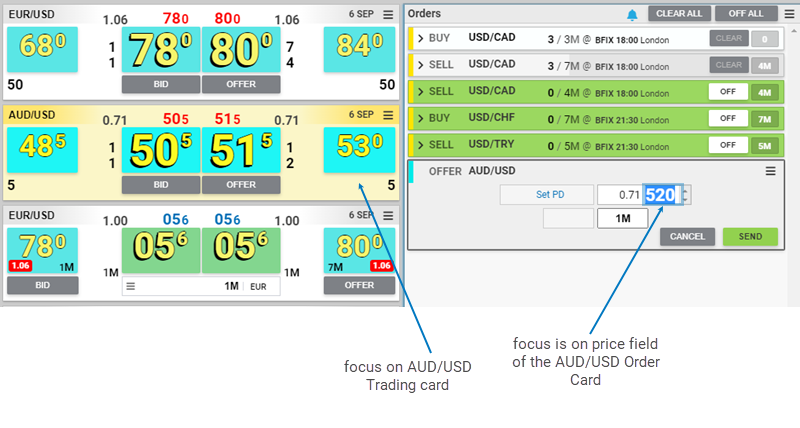
Furthermore, any elements within a card that are in focus can be edited. In the example below, the price of the AUD/USD Order Card is in focus, so the price can be edited with the <up> / <down> arrows or <numeric> Keypad keys, etc. Simultaneously, since the AUD/USD is also in focus, any presses of the Keypad trading keys, <BUY> / <SELL> / <BID> / <OFFER>, will initiate another order for AUD/USD.
Keypad Navigation Keys
The Keypad keys fall in to 3 broad categories: Navigation, Trading, and Editing Values. They have similar functions when used to move through the Workspace and navigate the inside of Cards.
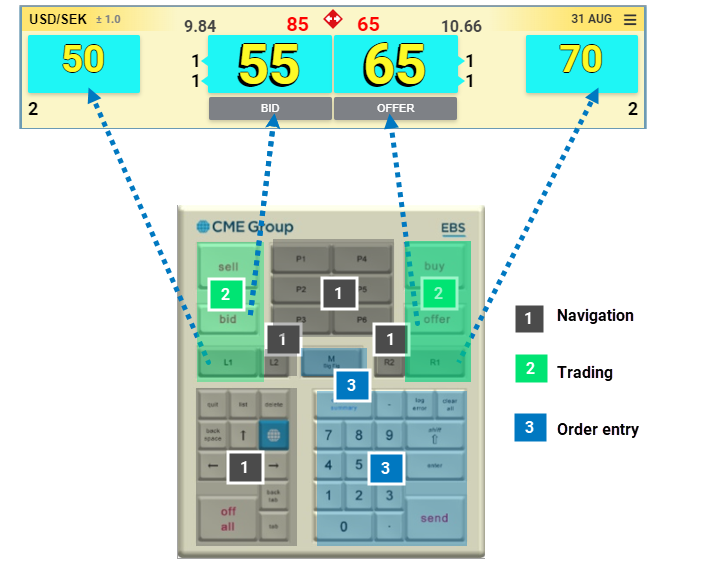
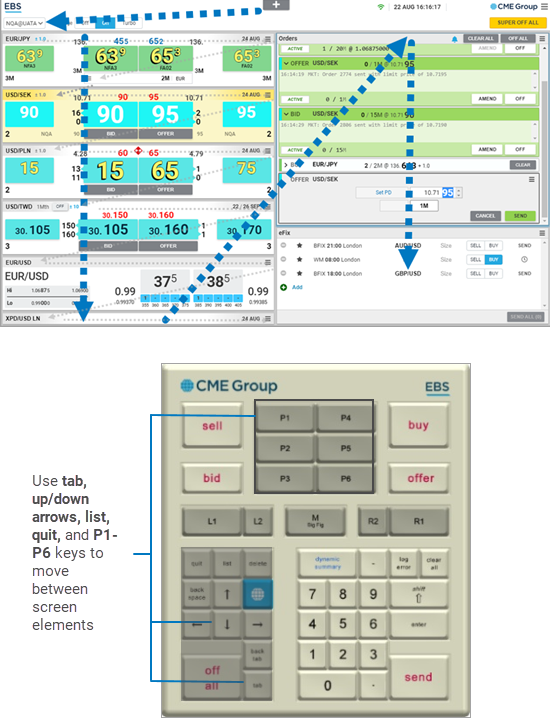
Navigate the Workspace and Cards using the following Keypad keys.
tab, back tab keys
Use the <tab> key to navigate the Workspace from top to bottom and left to right between each of the cards and elements, as well as within each configurable option of each card type and container (e.g. Orders, eFix). Use the <back tab> key to move through the Workspace and cards in reverse.
Starting from the top of Workspace, each successive press of the tab key moves the focus from card > card options > next card.
Within menus <tab> / <back tab> key scrolls options.
Within each card type or container, <tab> key moves between editable options.
up/down, left/right arrows
Use the <up> / <down> arrow keys to move between cards in the Workspace when the focus is on a Card.
When the focus is on a menu, use the <up> /<down> arrow keys to scroll options.
When the focus is within the price and quantity fields, use the <up> / <down> arrow keys to incrementally increase or decrease amounts.
list key
Use the <list> key to open dropdowns to when focus is on a menu field.
enter key
Use the <enter> key to make selections within menus.
When focus is an open Order Form, press <enter> twice to send order to market.
CME Group logo key
Use the <CME Group logo> key to open the side menu with User Settings.
quit key
Use the <quit> key to cancel an order when focus is on an Order form or active order.
P1-P6 keys
Assign <P1-P6> keys to any Workspace elements for quicker access by going to the menu of the individual card and selecting a <P> key assignment.
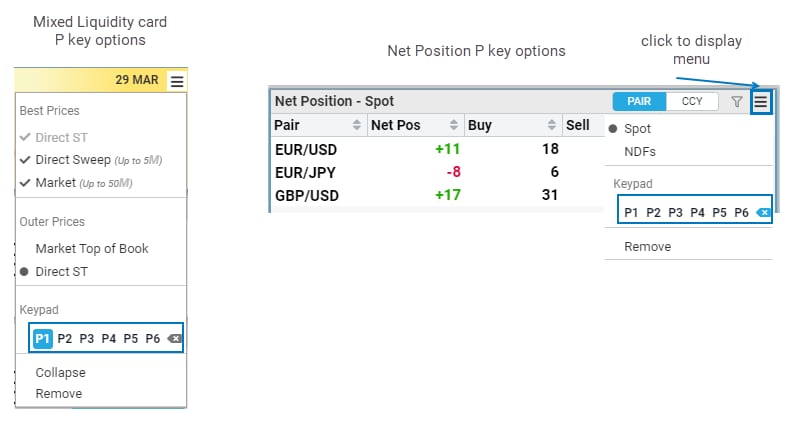
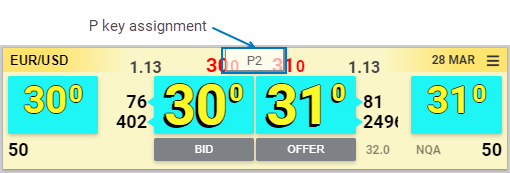
The P key assignments flash briefly after pressing a P key.
To navigate the Workspace using the EBS Keypad:
- Multiple elements can be assigned to the same P key.
- <P4> is the default to navigate within an order card.
- Some Cards which contain multiple rows inside the card can be navigated within the Card by pressing <Enter> key to enter the Card and <Esc> key to exit the card back to Workspace level.
- Any additional presses of the same P key shifts the focus to the next P key assignment regardless of element state and mode (Expanded/Collapsed/Active/Terminal).
Note: Shortcuts for trading functions can be enabled for the keypad and mouse to make execution of trades even easier.


