User Help System
Deals Query - STP Trade View
Deals Query - CME STP Trade View allows users to run historical queries against all trades done by specific user or firm across all CME venues depending on user entitlement. Standard entitlements for EBS Workstation allow a user to query their own trades executed on EBS.
- To access STP Trade View
-
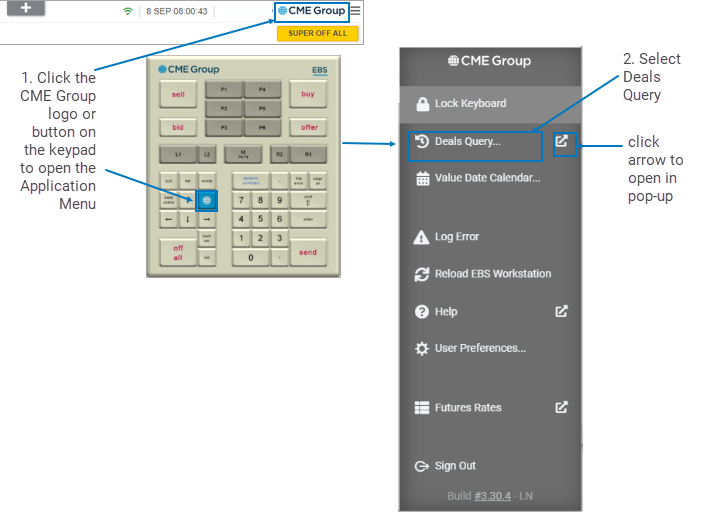
Click the CME Group logo in the top right corner of the application (or press the blue CME Group button on the EBS Keypad) then click Deals Query.
Note: Entitled users can also access CME STP Trade View via the internet. More detailed information regarding STP Trade View functionality and access at this link.
- To run a query
-
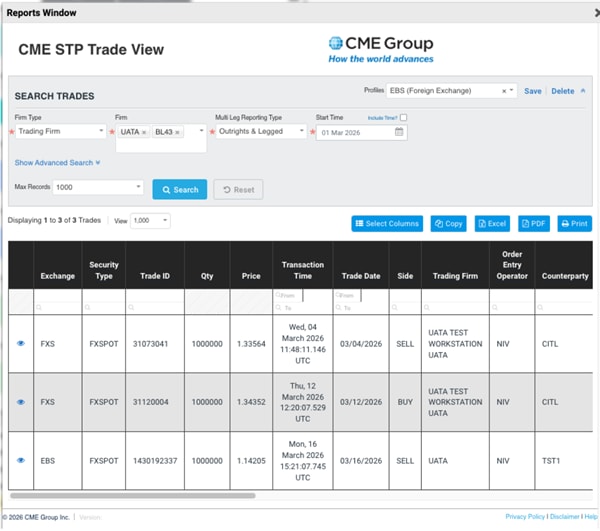
Select Firm Type, Firm (GFID), Reporting Type, and Start Time before running the query.
-
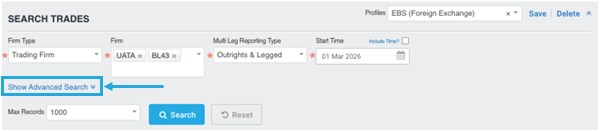
Trader GUS will pre-populate under the Operator field. Additional search criteria can be accessed by clicking Show Advanced Search.
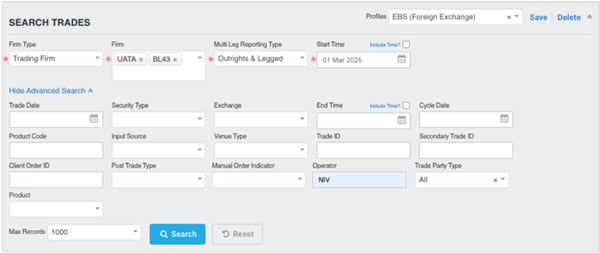
-
Once the query has been run display fields can be filtered.
Note: For users accessing STP Trade View via EBS Workstation it is advised that all unnecessary fields be deselected and hidden permanently (see Saving User Profile).
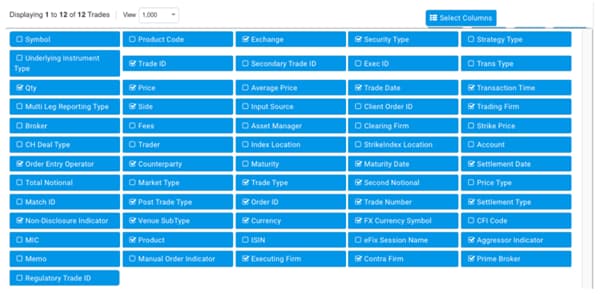
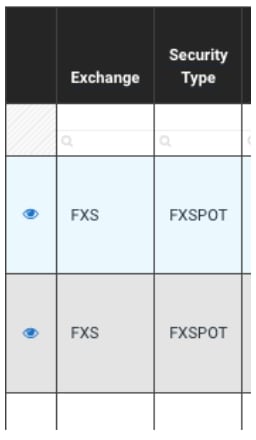
In the returned results double-click an “eye” icon to get detailed view of a single trade ticket:
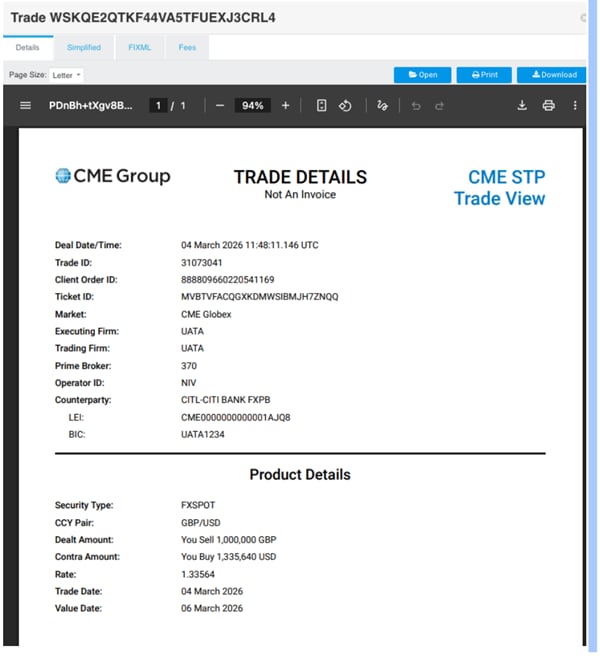
Save User Profile
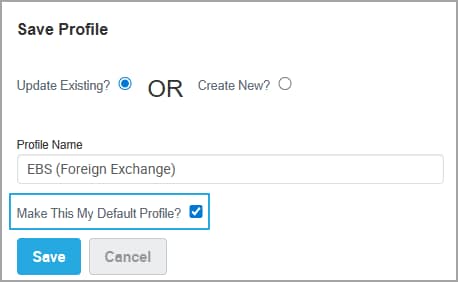
Keep preferred search profiles including populated fields and column selections by saving the profile.
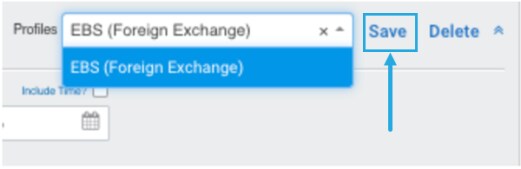
Update pre-existing profiles or create new profiles, as well as specify a profile “Default."
Note: Selecting a saved profile as the default opens the STP Trade View window with saved layout and settings on next use.