User Help System
Terminating Location or Service Inventory
Using the Reporting > Location and Service Reporting tab on the CME Group Data Services portal, customers can terminate inventory when reporting on either a monthly or as-needed basis.
A customer can report the device count as "0" for a market data access license to terminate device inventory per location, or enter a date in the End Date field to terminate a license for a website location or service (e.g., mobile application).
- To terminate location or service inventory
- Based on your ILA, select REPORT NOW in the Location Based (monthly) or As Needed Reporting section.
- Select a location or service. For location reporting, select a Location ID in the Locations section.
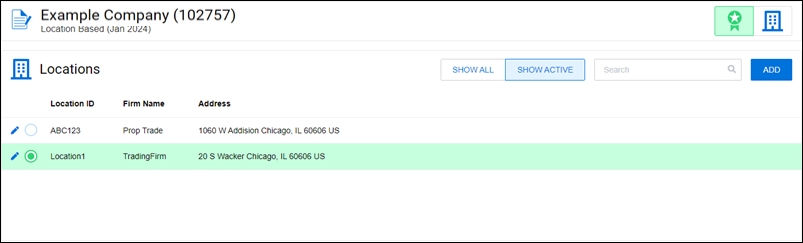
For service reporting, select a Service Code in the Services section.

- Terminate the location or service inventory. To terminate device inventory at a location, enter "0" in the month of termination for the selected Reporting Code in the Reporting section.

To terminate a website location or service license with a Start Date, enter the termination date in the End Date field.
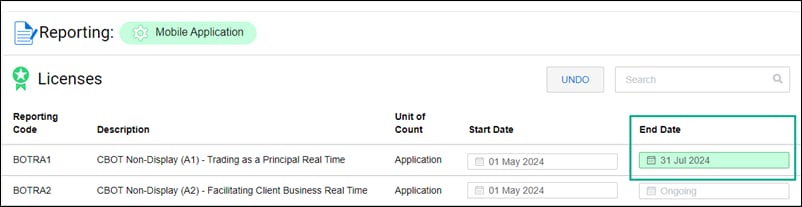
Note: You can also terminate device inventory at a fee-liable location in Excel using file upload.
- Select SUBMIT REPORT and review the updated inventory, dates, and services for completeness and accuracy.
- After reviewing the page, select the check box in the REPORTING CHANGES section to confirm.
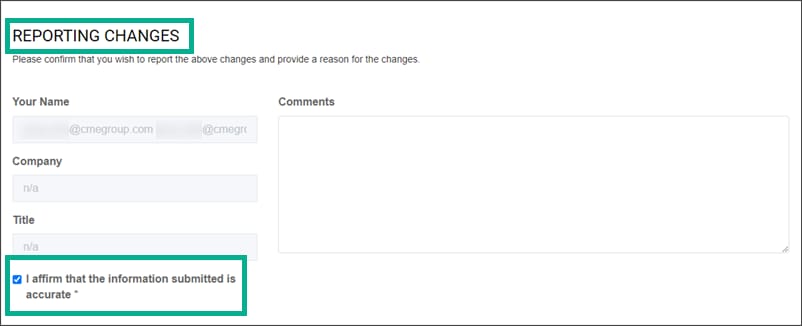
- Select SUBMIT REPORT.
The report is submitted to CME for review. Your Global Account Manager will either approve the report or contact you to address any open issues before approving.


