User Help System
Quarterly White Label Reporting
Licensees with Derived Data License agreements use the automated White Label Reporting feature to report their white label clients in receipt of derived data products. This feature enables Licensees to report via the Data Services Portal user interface, which generates an invoice based on what is reported for derived data.
- Select Location and Service Reporting on the CME Data Services Portal.

All reportable licenses for your firm are displayed.
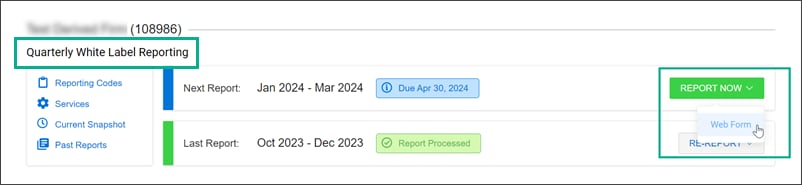
- Select Report Now > Web Form in the Quarterly White Label Reporting section.
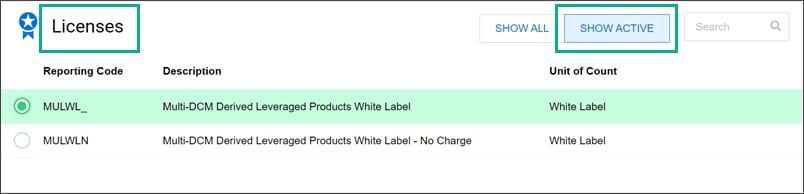
- Select Show Active in the Licenses section.
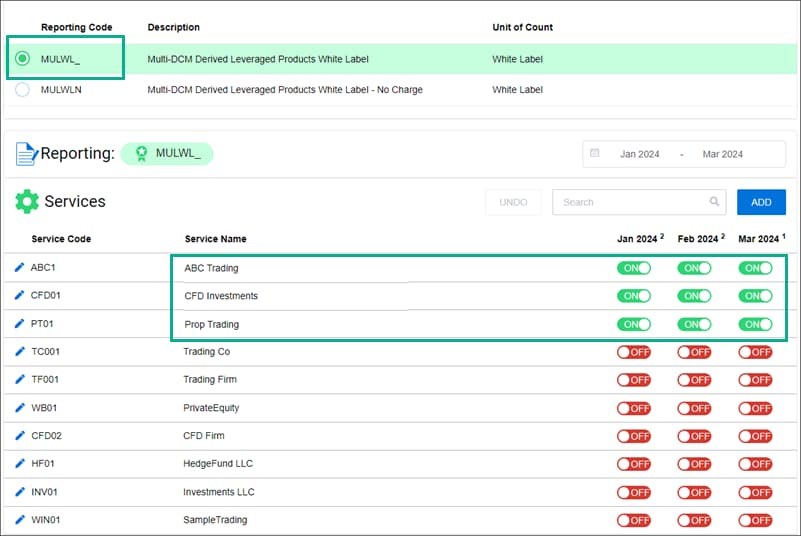
- Select a Reporting Code.
The reporting code determines which services are displayed as fee liable or "no charge" in the Reporting section. If a fee liable reporting code is selected, the green ON toggles for each month indicate which services are billed, and the red OFF toggles indicate which services are not billed.
If a "no charge" reporting code is selected, the green ON toggles for each month indicate which services are not billed, and the red OFF toggles indicate which service names are billed.
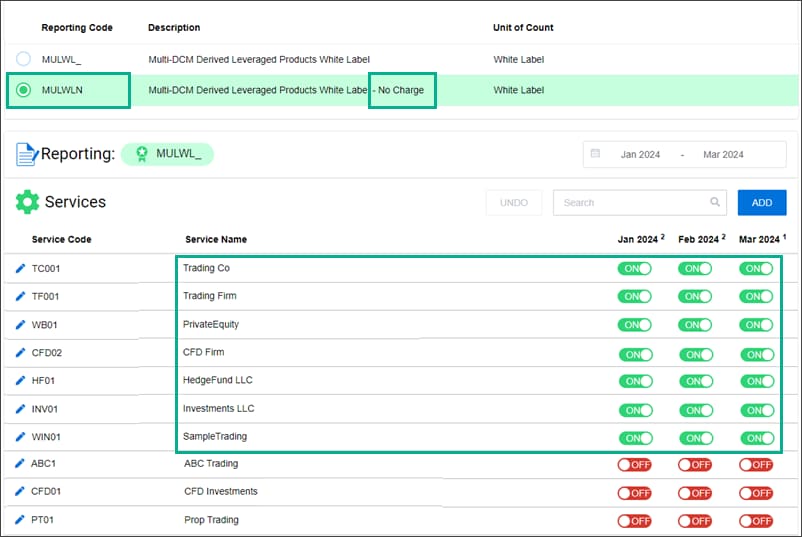
Note: Customers are allowed up to seven "no charge" white label clients.
- Set each month of the quarter to ON or OFF in the Reporting section.
- ON: indicates the client joined on or before the 15th of the month. If they cancel anytime during the month, CME Group charges the full month.
- OFF: indicates the client joined on or after the 16th of the month, or canceled in the previous month or quarter. Clients who are active at the beginning or end of the quarter are charged for the whole quarter.
- Select SUBMIT REPORT and review the QUANTITY CHANGES and NEW SERVICES sections for completeness and accuracy.
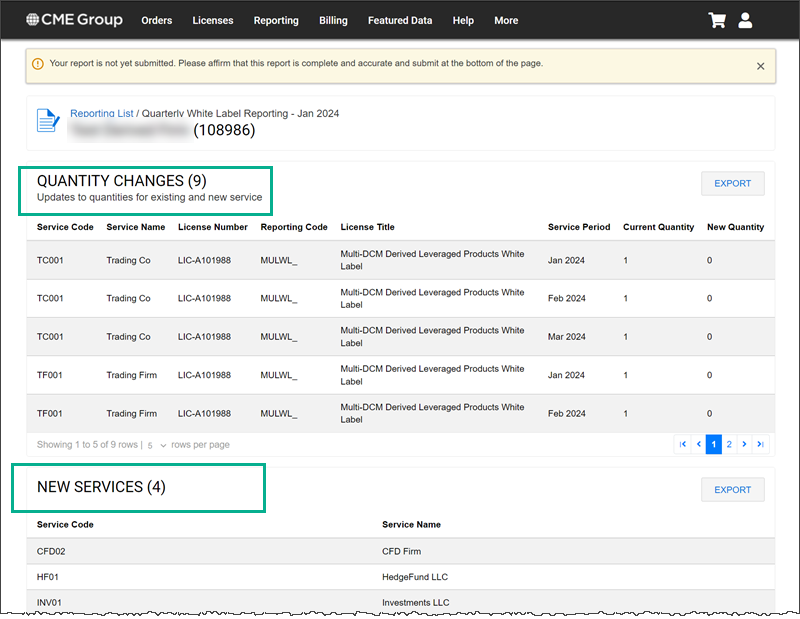
- After reviewing the page, select the check box in the REPORTING CHANGES section to confirm.
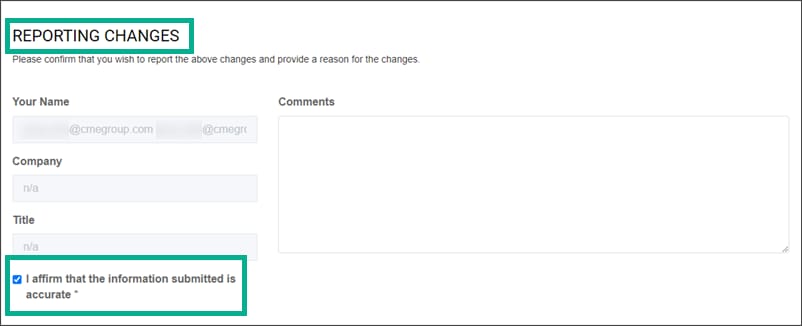
- Select SUBMIT REPORT.
The report is submitted to CME for review. A Derived Data Analyst will either approve the report or contact you to address any open issues before approving.
- Select ADD in the Reporting > Services section.

- In the Add Service dialog, enter data in the following fields and select CONFIRM.

- Service Name: The client's name. This is a required field.
- Service Code: The client's URL or service name.
- Service Type: The default value is "White Label". This is a required field.
- Service Description: Enter the list of instruments applicable to your new White Label client. This is a required field
After you select CONFIRM, the client is added to the Reporting > Services section.


