User Help System
Quarterly Instrument Reporting
Derived Data Licensees use the automated Quarterly Instrument Reporting feature to report the service type, service, and instrument comprising the derived product for each API Client and API Client Redistributor. The feature enables Licensees to use the Data Services Portal to upload a quarterly instrument report, which generates an invoice based on what Licensees report for derived data.
To report derived data for API clients:
- Download the report from the previous quarter.
- Report derived data per instrument for the current quarter by editing the report file.
- Upload the completed report file and submit it to CME Group.
- Select Location and Service Reporting on the CME Data Services Portal.

All reportable licenses for your firm are displayed.
- Select Past Reports in the Quarterly Instrument Reporting section.

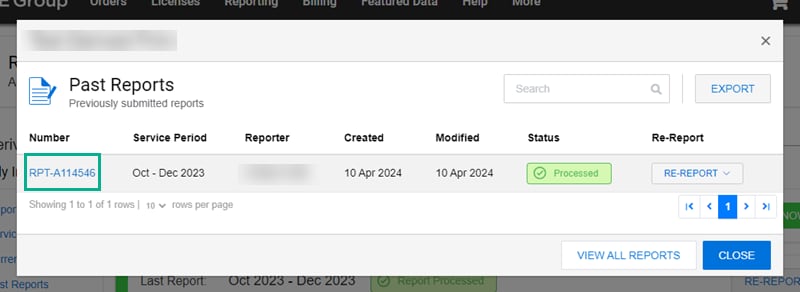
- Select the previous quarter report in the Past Reports dialog.
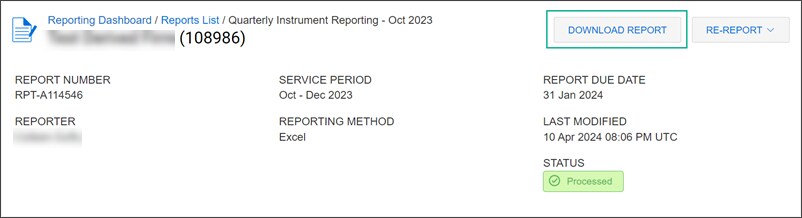
- Select Download Report on the Reporting Dashboard/Reports List page.
- Open the downloaded report file. The following columns are displayed on the Report tab.
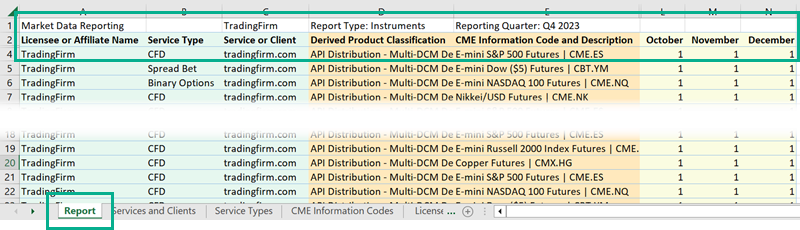
- Reporting Quarter: <Date>
- License or Affiliate Name
- Service Type
- Service or Client
- Derived Product Classification
- CME Information Code and Description
- <1st Month of the quarter> , <2nd Month>, <3rd Month>
Note: Do not change your company (Licensee) name on the top row. Contact CMEGroupderiveddata@cmegroup.com to advise of changes to company name.
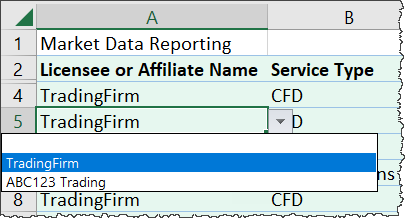
- In the Licensee or Affiliate Name column, select a cell and select an API client from the drop-down list.
Note: If your client discontinues market data mid-quarter, do not delete their row. Enter a "0" in the corresponding <Month> column instead.
To add a new API or API Redistribution client, select the Licensee and Affiliates tab at the bottom of the spreadsheet, and enter the new client name under the last client name.

- For Service Type, select each derived product you are licensed for. If you have licenses for multiple products, report each product in a separate row.
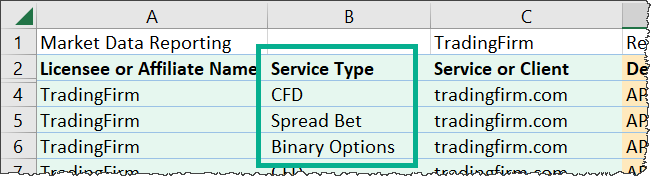
If your product type is not listed, contact CMEGroupDerivedData@cmegroup.com to have it added to your report.
- For Service or Client, select a service from the drop-down list.
WARNING: Do not enter a service name directly in the cell or enter "TBC" or "Blank" in the cell on the Report tab. This may cause the report upload to fail. You must select a service name that is entered on the Services and Clients tab.
To add a new service, select the Services and Clients tab at the bottom of the spreadsheet. If the new service belongs to an affiliate of your API client, ensure that the affiliate name is also entered on the Licensee and Affiliates tab.

- For Derived Product Classification, select a derived product license classification from the drop-down list.
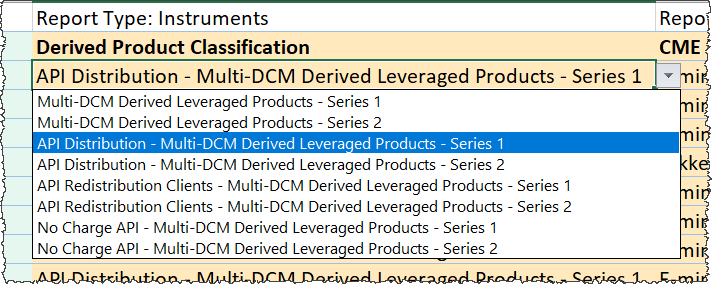
- For Appendix D instruments, select "API Distribution - Multi-DCM Derived Leveraged Products - Series 1 or Series 2." These licenses are applicable to your API clients.
- For Appendix D1 Instruments, select "API Redistribution Clients - Multi-DCM Derived Leveraged Products - Series 1 or Series 2." These licenses are applicable to your API Redistribution clients.
- For API clients that have the same services under their Affiliates as defined in your Derived Data License Agreement, select "No Charge API - Multi- DCM Derived Leveraged Products - Series 1 or Series 2".
- For CME Information Code and Description, select an instrument from the drop-down list. If you do not see your instrument in the list, contact CMEGroupDerivedData@cmegroup.com to review.
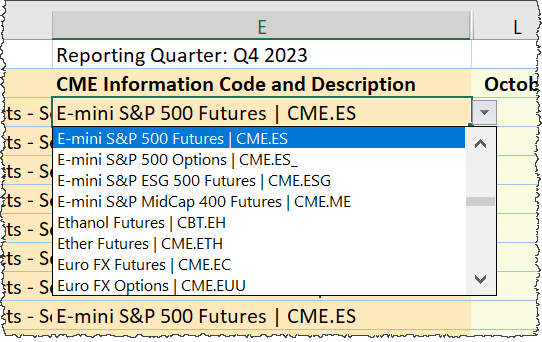
WARNING: Not selecting an instrument may cause the report upload to fail. Also, ensure you have selected the correct quarter and year at the top of the column.
Note: If your client discontinued market data mid-quarter, do not delete an instrument. Enter a "0" in the corresponding <Month> instead.
- For each Month in the quarter, enter "1 or "0", where:
- 1 - indicates the client joined on or before the 15th of the month. If they cancel anytime during the month, CME Group charges the full month.
- 0 - indicates the client joined on or after the 16th of the month, or canceled in the previous month or quarter. Clients who are active at the beginning or end of the quarter are charged for the whole quarter. Do not enter "0" for the middle month of a quarter.
WARNING: Leaving this field blank may cause the report upload to fail.
- Save the changes and check the report for completeness before closing the file.
- Ensure there are no incomplete cells highlighted "pink" in the spreadsheet. Incomplete cells prevent the report from being accepted.
- Verify that the names in the Licensee or Affiliate Name column are also entered on the Licensee and Affiliates tab.
- Ensure that "1" or "0" is entered for each Month.
WARNING: Accepted reports are final. They cannot be modified in previous quarters. Ensure that a "1" or "0" is entered for each month.
- Select REPORT NOW > Excel in the Quarterly Instrument Reporting section.
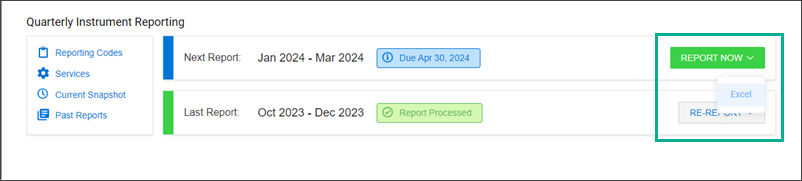
- Upload the quarterly instrument report file and select Submit.
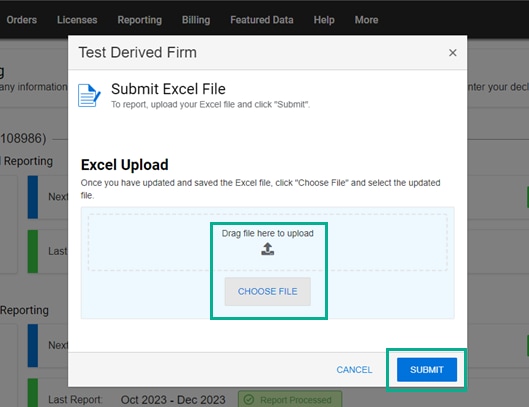
The system performs an automated check for any data issues and queues the report for further review by CME Group. A Derived Data Analyst will contact you if further clarification is needed.


