User Help System
Application Reporting
Customers with license agreements for market data usage via internal non-display applications use the As-Needed option on the Location and Service Reporting > Reporting page to report inventory changes per service or license.

Applications include:
- Internal, non-display services
- Automated and Semi-Automated Trading Systems
Note: Any and all Semi-Automated Trading Systems are counted as one (1) Application for the purposes of determining fees. For Licensees who have declared Semi-Automated Use during the onboarding process, a generic "Semi-Automated Trading System" Service must be reported with the corresponding effective dates via As-Needed Application Reporting.
- To report for an application
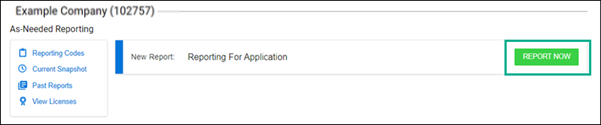
- Select REPORT NOW in the As Needed Reporting section.
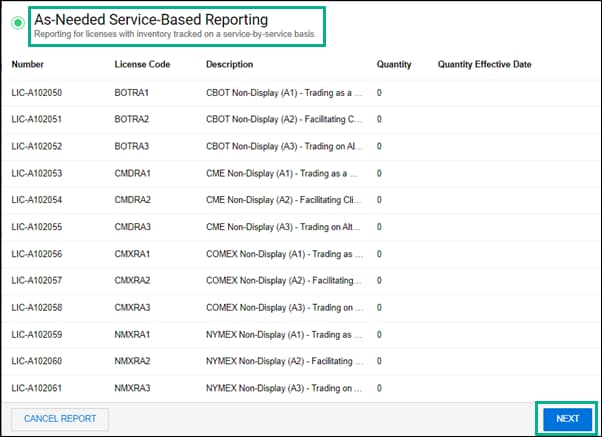
The As-Needed Services-Based Reporting pop-up page is displayed. This page shows the non-display licenses that are part of your customer profile.
- On the As-Needed Services-Based Reporting pop-up page, select NEXT.
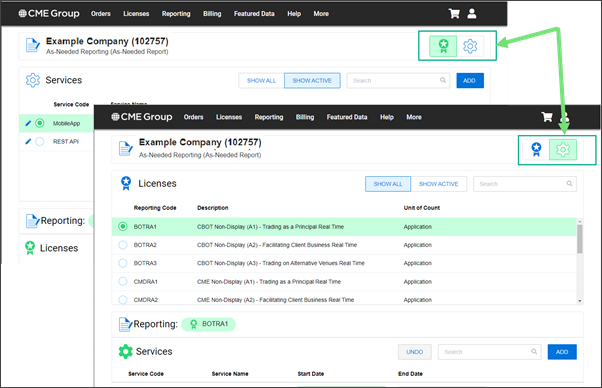
- Select the icon for Licenses or Services in the top-right corner of the page to filter inventory by license or service.
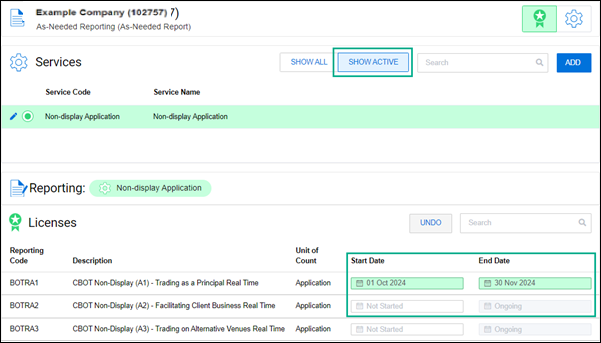
- On the As-Needed Report page, select Show Active for the selected service. For example, to only update your active inventory, select a service and adjust the Start Date and End Date. Licenses that have not been added to your original order are shown as "Not Started".
- Select SUBMIT REPORT and review the updated inventory, dates, and services for completeness and accuracy.
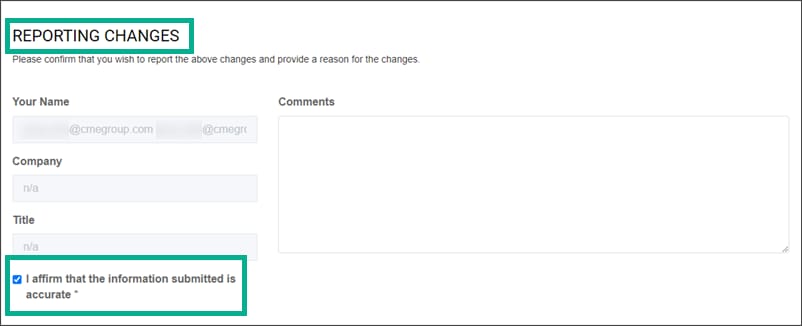
- Optionally, enter comments prior to submitting the form to explain any inventory updates. These help your account manager during the review of the changes.
- You can also optionally select CANCEL REPORT to return to the main page, RESET REPORT to remove the updates, or SAVE FOR LATER to complete the report at a later time.

- After reviewing the page, select the check box in the REPORTING CHANGES section to affirm accuracy.
- Select SUBMIT REPORT.
The report is submitted to CME for review. Your Global Account Manager will either approve the report or contact you to address any open issues before approving.


