User Help System
Enter Orders
Use the Market view to open an order entry ticket and submit new orders or aggress an order.
- To enter an order:
- To open an order entry ticket, tap in contract Bid Qty or Offer Qty column.
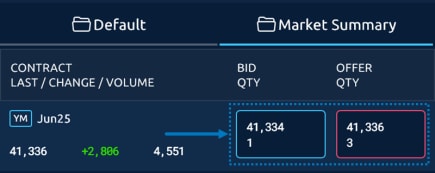
The order ticket displays.
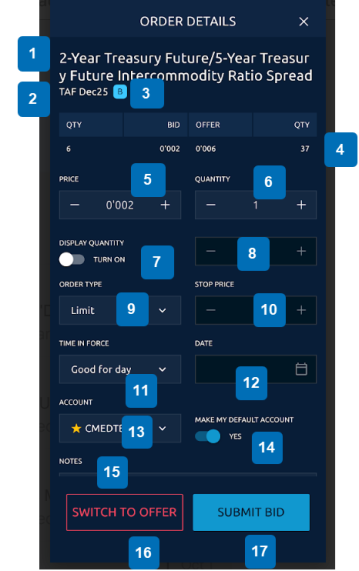
- Complete or edit the following fields as needed:
| Field | Description |
|---|---|
|
1.Contract Name |
Name of selected instrument. |
|
2. Contract Code and Term |
Code and term for selected instrument. |
|
3. Buy or Sell indicator |
B in blue for buy and S in red for Sell |
|
4. Top of Book |
Real time data for selected contract |
|
5. Price |
Use the + and - buttons to set the price for the order. |
|
6. Quantity |
Use the + and - buttons to set the quantity for the order. |
|
7. Display Quantity |
Specify quantity shown to market, replenishes the specified quantity when filled, until entire order quantity is filled. |
|
8. Display Quantity value |
Use the + and - buttons to set the display quantity. |
|
9. Order Type |
Use to select from Limit, Market with Protection, Market-Limit, Stop with Protection, or Stop-Limit. |
|
10. Stop Price |
Enabled for Stop-Limit or Stop with Protection |
|
11. Time In Force |
Use the Time in Force list to set the order as Good for day, Good til Cancelled, Good til Date, Fill, kill remainder, or Fill or kill. |
|
12. Calendar |
Set time in force. |
|
13. Account |
Use the list to select an Account for the order. |
|
14. Make My Default Account |
Use the toggle to make the selected account the default for all orders. |
|
15. Notes |
Field for entering any special comments, instructions, etc. |
|
16. Switch to Bid / Offer |
Click to change the ticket to bid (offer). |
|
17. Submit Bid / Offer |
Click to submit the bid (offer). |


