User Help System
Alerts
Note: In order to receive alerts (push notifications) ensure notifications for CME Direct are enabled in your iOS or Android system settings in one of these ways:
-
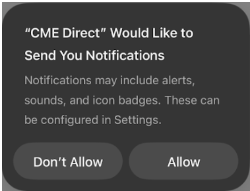
Enable alerts upon the very first launch of CME Direct Mobile app by clicking Allow on the Enable Notifications message that appears.
-
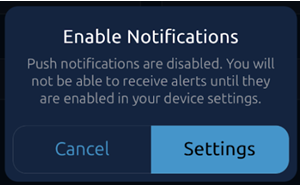
If you didn't initially allow notifications, a prompt will appear when creating a first alert, with a link to phone settings where you can turn on notifications.
-
On subsequent launches of the app, manually enable alerts:
iphone: Settings > Notifications > CME Direct > > Allow Notifications
Android: Settings app > Notifications > App settings > CME Direct Mobile
Create Alerts
- To create an alert:
- In Market view, swipe left on an instrument and select the alert icon.
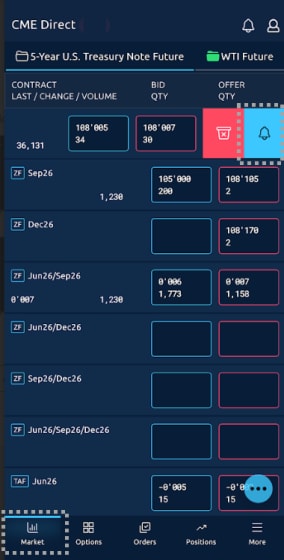
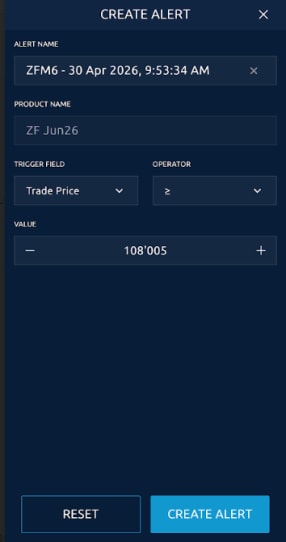
- Complete the alert form.
-
Alert Name: Pre-populates the instrument name with the time stamp to give it a unique name.
Note: To customize the alert name click the x to the right of the field and enter a new name.
-
Product Name
-
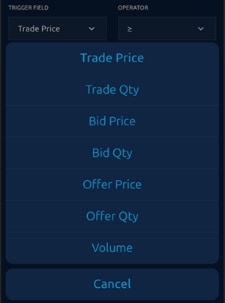
Trigger Field: Specify a trigger for the alert: Trade Price, Trade Qty, Bid Price, Bid Qty, Offer Price, Offer Qty, or Volume.
-
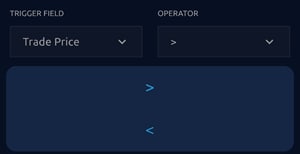
Operator: Define the relationship to Value by selecting one of the operators, either < or >.
-
Value: For price related fields, this pre-populates with the last trade price to give a starting point. Tick up or down or enter in a value.
-
Reset: Resets all fields.
-
Create Alert: Creates and activates the alert.
Once the an alert is created, a notification confirming it successfully created appears.

Users will receive one of two types of notifications:
-
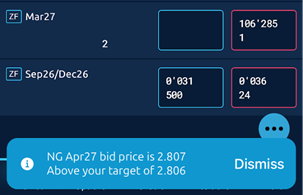
If the user has the app opened, they will receive a notification at the bottom of the app screen.
-
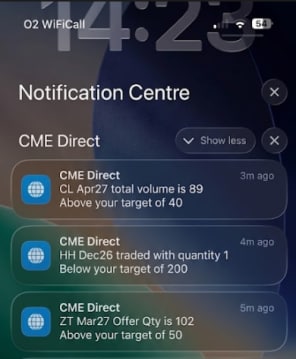
If the user has the app minimized, they will receive a push notification.
Manage Alerts
Use the manage alerts screen to view details and options for individual alerts.
- To manage alerts:
Select the alert icon on the top of the app.
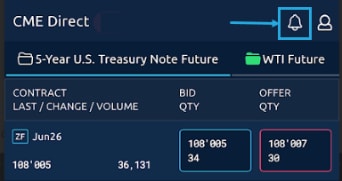
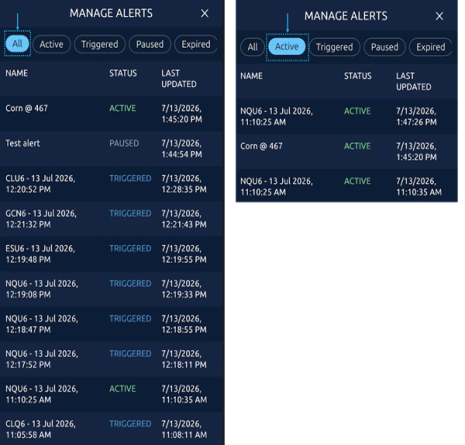
Use the filters to select which alerts to display: All, Active, Triggered, Paused,or Expired
.
- To view alert details
Tap an alert to view additional alert information.
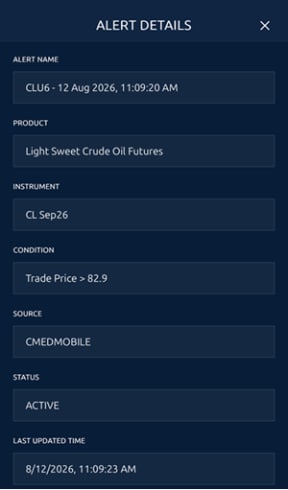
- To view alert options
Swipe left on an Active alert to pause, update, create another alert with the same or modified parameters, or delete the alert.
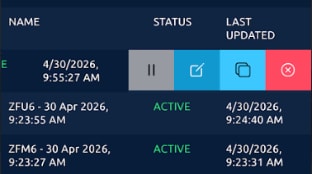
Swipe left on a Paused alert to re-activate, update, create another alert with the same or modified parameters, or delete the alert.
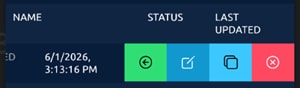
Swipe left on a Triggered alert to create another alert with the same or modified parameters, or delete the alert.



