User Help System
Position View
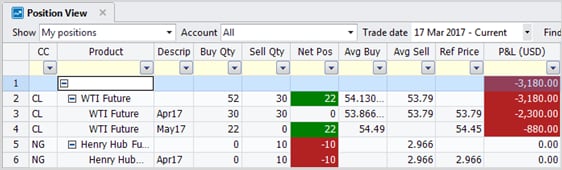
The Position View view offers enhanced exchange position data and shows profit and loss (P&L) on a per-Product or per-Contract level.
- To use the Position View:
- From the toolbar, click Menu>New View, and from the Add View window, click Position View.
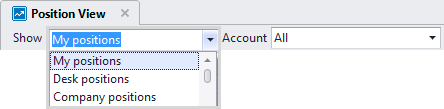
- To filter the display of positions, from the Show field, select either My Positions, Desk Positions, or Company Positions.
- To view starting positions and trading activity for the current trading session or up to 4 days prior to this trading session, from the Trade Date field, select the current date, previous date, or up to 3 days prior to the previous date.
Product Level
At the Product (collapsed) level, P&L displays in a summary view of all contracts within a product and illustrates the overall position and P&L for the user. In addition to Net Position and P&L, the Product level view displays the product's starting position (pricing data is not displayed). Only products having a contract with a starting position uploaded (or a trade on the day) are displayed.
Note: Products with profits will display with a green background, while contracts with loses will display with a red background.
Product Level Example

Contract Level
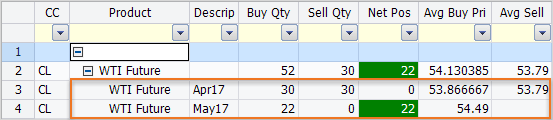
At the Contract (expanded) level, a fully expanded view exposes all contract positions and P&Ls for a product, and includes one row for each outright contract or strip contract in which there is either an uploaded starting position or one or more trades on the day. To expand a product level display, click the plus icon in the Product field.
Note: When numerous contract rows are displayed for a given product, they are ordered by nearest term first, and strike price from low to high.
The following rules apply to positions and P&L at the Contract level:
- Buy and Sell prices display as Average Buy and Sell weighted prices for the contract.
- The Units column displays the unit name corresponding to the quantity traded (e.g. Contracts).
- If a contract has a Net Position other than zero, the Last Price or a User Price (A user defined price for calculating P&L) indicates fair value so the open position can be marked-to-the-market.
- The Last Price displayed can be the most recent price of the last trade in the contract, the price of an existing bid higher than the last trade price, or the price of an existing offer lower than the last trade price or settlement price.
Contract Level Example
Import Starting Positions
Import functionality allows you to display starting positions imported from your clipboard. When you first run starting positions each day, the view will display no position data. However, you can import starting positions from your clipboard using CME Direct's new Import functionality (or by selecting an Import button on the view's toolbar), which allows you to select and then import a file containing the positions. These files should be in a CSV format
Note: Users can export positions via the toolbar and context menu's Export to Clipboard feature.
- To import starting positions:
- From the Position View toolbar, click the Import Starting Positions button.

- From the Import Starting Positions window, click Import From Clipboard.
The window populates with position data.
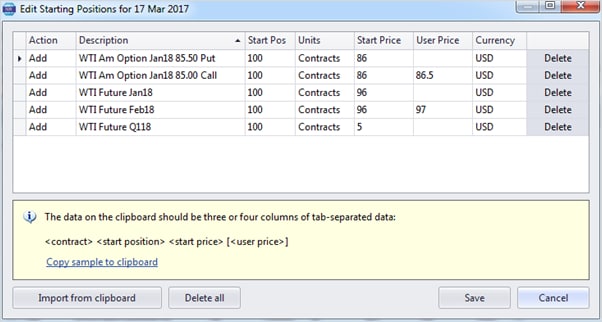
Note: Selecting Cancel closes the Import Starting Positions window and takes you back to the Profit and Loss view.
If any starting positions cannot be read because of incorrect formatting for example, a warning message appears detailing the rows and reasons it could not be read.

- If there are no errors, click Save.
- Return to the Position View window to see your data displayed.
Note: When positions are imported using an Excel spreadsheet, the positions present in the spreadsheet either overwrite the existing position in that tradable item in CME Direct or are added to the existing positions in CME Direct (if the position in the spreadsheet represents a new CME Direct position for the trader/broker).
Context Menu: Display Mode and Currency
The Position View Context menu allows you to open the Import Starting Positions window, select a Display Mode, choose the Currency for your P&L display, and select whether or not to roll position data when the date changes. To access the Context menu, right-click within the Position View's main grid.
Display Mode

When using the Position View window, users have the option of displaying data in one of two views; a Spreads display or a Positions display.
- In the Spreads display you can view existing exchange positions with additional P&L values. This view displays tradable item's positions and fills for a given spread order.
- In the Positions display you can view positions at the contract (outright and strip) and product levels. This view displays start of day positions and P&L values. To select this display mode, from the Display Mode context menu, choose Strips or Outrights.
Currency
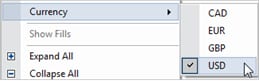
Use the context menu's Currency option to display P&L in your preferred currency (default = USD). CME Direct utilizes daily exchange rates to convert from the current currency to the users preferred currency.
Roll On Date Change
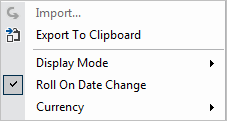
Since different markets open and close at different times, a grid rolling feature has been added that determines whether or not to automatically display new data when the market rolls. When checked, the Roll On Date Change feature enables, and automatically rolls the trading session when the market rolls (Market Closes or Market Opens) to show the most recent position data. When not enabled, position data reflects the date in the Trade Date field until a user explicitly changes the date in that field.
Position View Filtering
The Position View allows users to filter positions by user or a specific account.
By default, the Position View displays My Positions for All accounts.

Users can also filter their positions by Company or Desk.
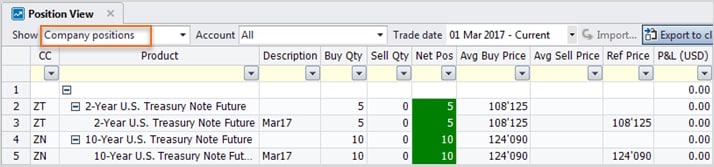
When filtered by company, users see their position (e.g. 2-YR Treasury) and the positions for other users in the company (e.g. 10-YR Treasury).
Users can further filter the display by selecting an individual user within the company (e.g. Testuser1).
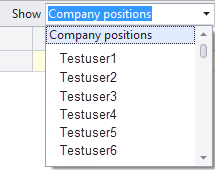
Note: P&L is re-calculated based on the filter selected.
Users can also filter positions by a specific account, which will display a subset of positions that were booked using the specific account.
Note: Selecting from both the position (Show) and account lists will persist among customer filters and cannot be saved by creating a custom filter.

Note: User can set up multiple Position Views, each with a different position and account filter selected.


