User Help System
Display Quantity Order
Display Quantity Orders allow users to designate a reserved quantity order that releases new live volume at the limit price after the initial volume is traded out.
This topic illustrates how to enter Display Quantity Orders and designate reserved quantity.
In the following example, Trader A will open an Exchange Trading Grid, enter an order of 100 for Heating Oil Futures at a price of 33.17, designate the order as a Display Quantity Order, and define the disclosed quantity as 60.
- To designate a Display Quantity Order and define the disclosed quantity:
- In a Trading Grid, click in a Bid cell.
The Order Entry window appears.
- Enter a price of 33.17, a Quantity of 100.
- In the Display Oty field, enter a quantity of 60.
Note: The Display Quantity must be less than what you entered in the Quantity field.
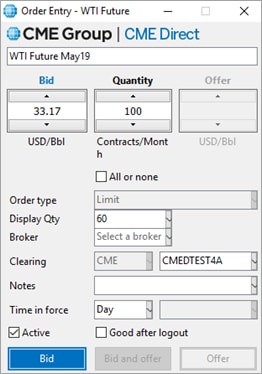
- Complete any other applicable fields as needed.
- Click the Bid, Offer, or Bid and Offer button.
The order displays in the Trading Grid showing only the disclosed quantity.

Note: Notice the order's entire quantity displays in your Blotter.
- When the disclosed quantity is filled, the reserved quantity will be added to the display.

Synthetic Display Quantity Order
CME Direct allows users to enter an Automated Order type that replenishes depleted order quantity and discloses to the market a random number of lots from the total order quantity submitted.
- Automated Order types may have a ‘Parent’ order that resides on a server and not on Globex. As such this ‘Parent’ order may not be given the same order protections as a native Globex order.
- When communicating with the Global Command Center regarding a CME Direct Automated order, users must explicitly state their question or issue is on a CME Direct Automated Order.
- Synthetics is a Beta feature, defaulted to OFF, and requires approval from CME Group prior to enabling.
Note: Displayed Quantity Orders are only available for Limit orders.
- To enter Synthetic Display Quantity Orders:
- Open an Order Entry ticket and select a Price and Quantity as needed.
- Click the Display Qty tab and enter a Max display qty.
Note: Max Display Qty is the largest quantity visible in the market at one time.
- Click the Synthetic Display Qty Order box. The minimum and maximum displayable quantities appear below the Qty variation field.
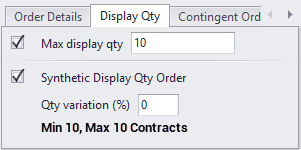
- Set the Qty variation (%) to determine the minimum displayable quantity.
Example:
Limit Order to buy 100 CL at 55.50
- Set maximum display quantity = 10
- Set quantity variation percentage as illustrated below
| Qty shown variation percentage | Max Qty | Min Qty |
|---|---|---|
|
10% |
10 |
9 |
|
20% |
10 |
8 |
|
30% |
10 |
7 |
Note: A maximum of 10 child orders are allowed. The variation percentage must be set so that the Total Order Quantity is no more than 10 times the minimum display quantity.
Automation details appear below the Display Qty tab.
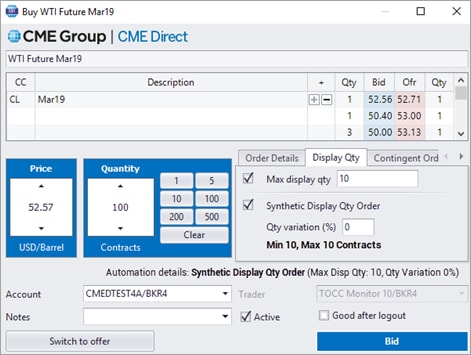
Note: Quantities are sent to the market randomly between the minimum and maximum contracts as the orders fill.
The following rules apply to the minimum quantity:
- If the calculated order Min Quantity is lower than the Tradeable Item Minimum Qty, then the order Minimum Qty defaults to the Tradeable Item Minimum Qty.
- If the remaining total quantity is lower than the order minimum quantity, an order is entered for the remaining quantity.
- Click the Bid or Offer button, and the Synthetic Display Quantity Order is added to the Order Book.
A message confirms the order was submitted.
Note: Any change to the Maximum Display Quantity or Variance is applied to the next order entered.
Order Book
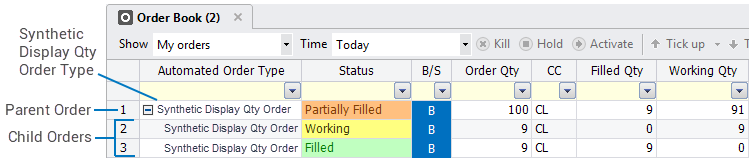
The Order Book now includes Synthetic Display Quantity Orders as an available Automated Order Type. Displayed Quantity Orders display with one row for the Parent and subsequent rows for the Child orders that are entered based on the display quantity and variance.
Note: The Disclosed Qty column displays the variance for this order type.