User Help System
View User Permissions
The primary User Administration window allows administrators to identify particular users in a company by name, login, and role, view the permissions for each of those users, as well as access additional windows for managing those users.
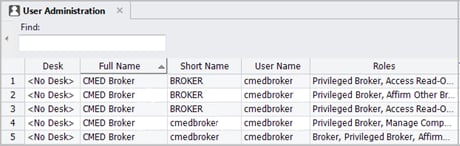
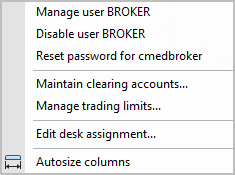
- To access additional User Admin windows and features:
Right-click on a user row and select a window or feature.
Using context menu options, the Trader/Broker Admin can perform various functions on behalf of each of the company's users.
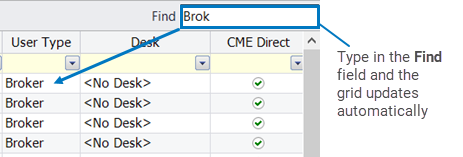
Find a User
Use the Find field to filter the display.
Note: Click a column heading to sort the display.
User Roles and Permissions
The User Administration window displays the following user permission information:
- Roles - Displays a list of trading and account functions the user is permissioned to perform.
- Permissions (Products) - Displays the products the user is permissioned to trade.
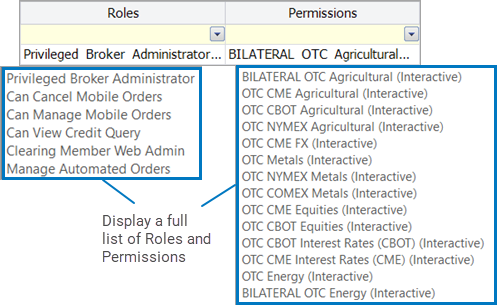
Hover over the Roles and Permissions fields to display a pop-up with a full list of roles assigned to the user and the products the user can trade.
- Charging Exchanges - Lists Exchanges for which the user is permissioned and can be charged for using.
- Username - Identifies the title used when managing a user.
- Full Name - Displays the name identifying the user.
- CME Group Login ID - Identifies a user's official ID for their CME Group profile.
- User Type - Identifies a user as a Trader, Broker, or Administrator.
- Desk - Identifies a user's Desk assignment.
- Trade Entry User Groups - Lists the shared groups to which a user belongs.
- CME Direct - Identifies whether the user has access to CME Direct.
- CME Direct Mobile - Identifies whether the user has access to the CME Direct Mobile application.
- Web Admin - Indicates whether the user has access to CME Direct Clearing Member View.
- Short Name - Identifies a username without the Trader, Broker, or Administrator designation.
- Sender Sub ID - Identifies the Operator ID.
- Token - Identifies a number used by administrators when logging in to certain CME Group applications.
- Company Name - Identifies the company(s) registered in CME Direct.
- Enabled - Indicates if the user login is enabled or disabled.
- Profile Type - Identifies Premium and Unknown types.
- Company Trading Limit Profile - Limits the size of orders that can be submitted.
- Prompt Month Trading Profile - Trading profile for the Futures contract that is closest to expiration.


