User Help System
Maintain Clearing Accounts
The Clearing Account Manager feature allows Administrators to assign clearing accounts to users within their company.
Each assigned account is available to the user for making transactions within the CME Direct Trading Client.
- To maintain clearing accounts:
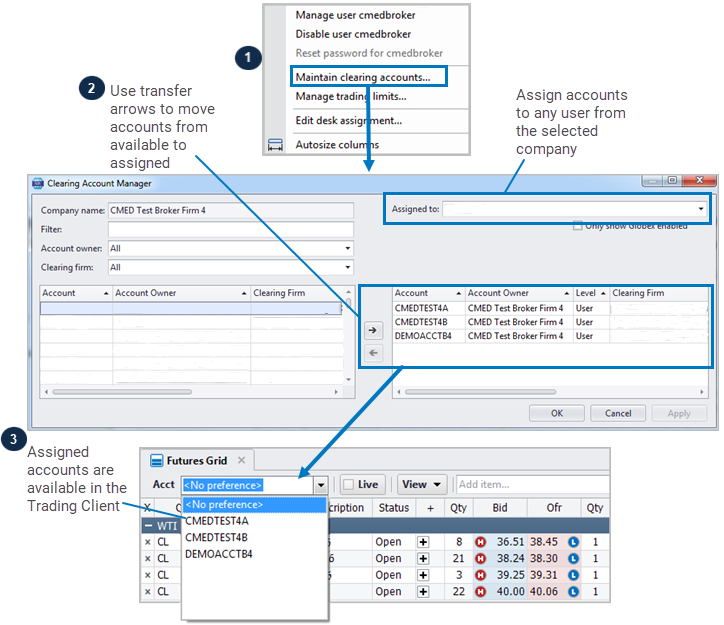
- From the User Administration window, right-click a user row, and select Maintain Clearing Accounts.
Note: The Clearing Account Manager appears defaults to the user and company from the row you selected.
- Optional: Use Assigned to field to select a different user to whom to assign accounts.
- Optional: Filter the available Account list using the following fields:
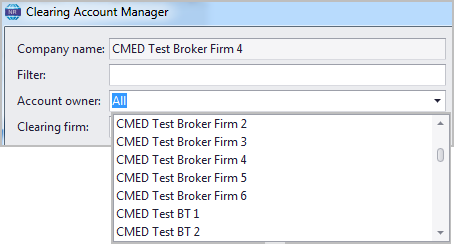
- Account Owner - Lists the trading companies available to the user.
- Clearing Firm - Lists the clearing members that can clear the user's trades.
- Filter - Type any applicable identifier.
- Optional: Use the Only show Globex enabled field to filter the Account list to only those accounts permissioned for Globex trading on CME Direct.
- To permission a Company Clearing Account to a user, use the transfer buttons to move the account from the available account pane to the assigned account pane.
Assigned accounts appear in the Trading Client, and are used when clearing trades.
Note: A user can only be assigned clearing accounts belonging to that user's company.
Clone Clearing Accounts
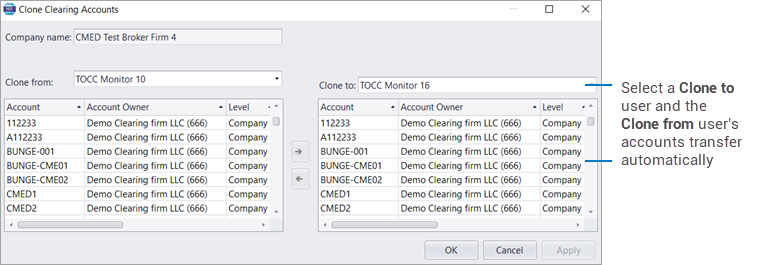
Use the Clone Clearing Accounts feature to copy the assigned accounts of one company user to another company user.
To clone accounts, from the context menu select Clone clearing accounts, select a user in Clone To field, and click OK.
Shared Groups
Shared Accounts Group functionality, available from the CME Direct Admin tool, allows firms to enter orders using clearing accounts from different entities. When one or more of these Shared Groups is enabled, users will be able to choose from a list of Account Owners when in the Clearing Account Manager.