User Help System
Access SFTP Data and Reports
The following instructions describe the process to access the CME Group SFTP environment, manage file transfers, and connection details to the user acceptance testing (UAT) and production environments (PROD) using a SFTP client application enabled for ssh encrypted login or terminal connection.
Note: Public / private key authentication can be used to secure connections, using SSH public key file format (RFC4716).
Connection Endpoints and IPs
Using the password or SSH authentication, log in to access CME Group SFTP via the UAT or Production environments.
BrokerTec and EBS clients and Futures and Options Clearing Member Firms must connect to SFTP (JScape) Production using the following information and update firewall rules, IPs and access data from New endpoints:
- (new) SFTP Environment Information - View Endpoint, IP, Port for new SFTP Service Migration Google Cloud. CME Group Login is required to view.
- (current) SFTP Environment Information - View Endpoint, IP, Port for current / on-prem SFTP Service. CME Group Login is required to view.
- Schema and Network Configuration - View and download iLink, Drop Copy and MDP schema and configuration files, security definition flat files, and market Schedule files for all environments (CME Group Login ID is required to view.
Note: CME Group Login is required to view.
Supported Ciphers and Encryption
To ensure security for data in transit, the following cryptographic protocols are supported for connection to CME Group SFTP environments. Ensure your SFTP client is configured for the following Ciphers (for data encryption) and MACs (for data integrity).
To view a list of permitted host keys, MACs, key exchanges, execute one of the following commands:
-
ssh -v
-
nmap --script ssh2-enum-algos
The following information is available to configure client-side firewalls, update client connection details and to ensure permitted cryptographic protocols are used.
Permitted Host Key Signatures
Modern Standard
- rsa-sha2-512
- rsa-sha2-256
- ssh-ed25519
- ecdsa-sha2-nistp256
- ecdsa-sha2-nistp384
- ecdsa-sha2-nistp521
Extended / Custom OID Curves
- ecdsa-sha2-1.2.840.10045.3.1.1
- ecdsa-sha2-1.3.132.0.1
- ecdsa-sha2-1.3.132.0.16
- ecdsa-sha2-1.3.132.0.26
- ecdsa-sha2-1.3.132.0.27
- ecdsa-sha2-1.3.132.0.33
- ecdsa-sha2-1.3.132.0.36
- ecdsa-sha2-1.3.132.0.37
- ecdsa-sha2-1.3.132.0.38
- ssh-ed448
Permitted Key Exchange (KEX) Algorithms
Standard Elliptic Curve and DH Groups
- ecdh-sha2-nistp256
- ecdh-sha2-nistp256
- ecdh-sha2-nistp384
- ecdh-sha2-nistp521
- diffie-hellman-group14-sha256
- diffie-hellman-group15-sha256
- diffie-hellman-group16-sha256
- diffie-hellman-group17-sha256
- diffie-hellman-group18-sha256
- diffie-hellman-group-exchange-sha256
Extended / Customer OID Curves
- ecdh-sha2-1.2.840.10045.3.1.1
- ecdh-sha2-1.3.132.0.1
- ecdh-sha2-1.3.132.0.16
- ecdh-sha2-1.3.132.0.26
- ecdh-sha2-1.3.132.0.27
- ecdh-sha2-1.3.132.0.33
- ecdh-sha2-1.3.132.0.36
- ecdh-sha2-1.3.132.0.37
- ecdh-sha2-1.3.132.0.38
Permitted SFTP Ciphers
AEAD / Modern
- aes256-gcm@openssh.com
- aes256-gcm@openssh.com
- aes128-gcm@openssh.com
- aes256-gcm
- aes128-gcm
- chacha20-poly1305@openssh.com
CTR Mode
- aes256-ctr
- aes256-ctr
- aes192-ctr
- aes128-ctr
- camellia256-ctr
- camellia192-ctr
- camellia128-ctr
CBC Mode
- aes256-cbc
- aes256-cbc
- aes192-cbc
- aes128-cbc
- camellia256-cbc
- camellia192-cbc
- camellia128-cbc
Permitted Message Authentication Codes (MACs)
Encrypt-Then-MAC
- hmac-sha2-512-etm@openssh.com
- hmac-sha2-256-etm@openssh.com
Standard SHA-2 MACs
- hmac-sha2-512
- hmac-sha2-256
Legacy / Truncated MACs
- hmac-sha1-512-96
- hmac-sha1-256-96
Accessing SFTP Account via Client Application
The recommended connection method is via a SFTP client application or terminal.
Example: FileZilla, WincScp, etc.
- To access the SFTP account via client application:
- Open your preferred SFTP client application.
- In the Host / Server field, enter the appropriate DNS Host address from the Environment Information (Endpoint, IP, Port). CME Group Login is required to view.
- In the Port field, refer to the Environment Information (above).
- Enter the assigned SFTP Username.
- Enter the corresponding SFTP Password.
- Select SFTP as the connection protocol.
- Select Connect.
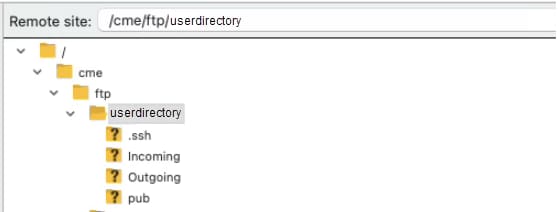
The following example illustrates the destination directory that appears after a successful login.
Depending on the connection method, the default (home) directory may vary:
- After successful login, the default root directory will appear for GCP JScape users.
- After successful login, the default Firm ID directory will appear On-premCurrent / Legacy
Access SFTP via Terminal (command line)
The following instructions describe the process to access SFTP via command line client applications available on many computer systems (e.g. Linux/macOS) and via tools like Command Prompt or PowerShell (e.g. Windows).
- To access the SFTP account via terminal (command line):
- Open the terminal or command prompt application.
- Use the sftp command to connect, replacing the placeholders with your specific credentials and the appropriate CME Group host address:
- User_Name: Enter the assigned Username.
- DNS or IP Address: Use the applicable IP address from the Environment Information (Endpoint, IP, Port). CME Group Login ID is required to view.
- Port_Number: Use the applicable port number from the Environment information (above).
- When prompted, enter the SFTP password.
After a successful login, the connection is routed to the root directory /.
- Navigate to the home directory - cd /cme/ftp/<FIRM_SFTP_Account_ID>
Note: FIRM_SFTP_Account_ID represents the CME SFTP Account ID.
Access SFTP via IP Address
To connect via an IP address to the active SFTP host, execute the following script:
Shell
# SFTP-Login.sh
#!/bin/bash
# This Script will login into primary CME SFTP server
# Refer Section 1 for Primary and Secondary IP Address
Primary=""
Secondary=""
Port=22
Timeout=5 # Seconds
# ANSI Color Codes
Cyan='\033[0;36m'
Green='\033[0;32m'
Yellow='\033[0;33m'
Red='\033[0;31m'
NC='\033[0m'
# Grab the username from the first argument
Username="$1"
if [ -z "$Username" ]; then
printf "${Yellow}Usage: $0 <username>${NC}"
exit 1
fi
# Function to check port connectivity
Check_Endpoint() {
local IP=$1
nc -zv -w $Timeout "$IP" "$Port" > /dev/null 2>&1
}
Target=""
printf "${Cyan}Checking availability...${NC}"
if Check_Endpoint "$Primary"; then
Target=$Primary
elif Check_Endpoint "$Secondary"; then
Target=$Secondary
else
printf "${Red}ERROR: Both SFTP endpoints ($Primary, $Secondary) are unreachable on port $Port${NC}" >&2
exit 1
fi
printf "${Green}Connecting to $Target...${NC}"
sftp -P $Port "$Username@$Target"
How to execute?
None
# SFTP-Login.ps1
# This Script will login into primary CME SFTP server
# Refer Section 1 for Primary and Secondary IP Address
$Primary = ""
$Secondary = ""
$Port = 22
$Timeout = 5 # Seconds
# Grab the username from the first argument
$Username = $args[0]
if (-not $Username) {
Write-Host "Usage: .\SFT-Login.ps1 <username>" -ForegroundColor Yellow
exit 1
}
# Function to check port connectivity
function Check-Endpoint {
param($IP)
# Test-NetConnection is the PowerShell version of nc -zv
$check = Test-NetConnection -ComputerName $IP -Port $Port
-InformationLevel Quiet -WarningAction SilentlyContinue
return $check
}
$Target = $null
Write-Host "Checking availability..." -ForegroundColor Cyan
if (Check-Endpoint $Primary) {
$Target = $Primary
}
elseif (Check-Endpoint $Secondary) {
$Target = $Secondary
}
else {
Write-Error "ERROR: Both SFTP endpoints ($Primary, $Secondary) are unreachable on port $Port"
exit 1
}
Write-Host "Connecting to $Target..." -ForegroundColor Green
# Launch the native sftp client
sftp -P $Port "$Username@$Target"
How to execute?
Test Connectivity
The following instructions describe the process to verify network connectivity to the CME Group SFTP environment; ensuring firewall and internal network allow traffic over required ports. Testing the connection is an essential function to ensure persistent file access and submission.
Confirm connection details
Clients accessing the following hostnames/endpoints and port must use a SFTP-capable client application or command-line interface.
|
Environment |
Hostname |
Port |
|
User Acceptance Testing (UAT) |
sftpx.uat.cmegroup.com |
22 |
|
Production |
sftpx.cmegroup.com Note: Clients must complete migration and connect to SFTP Production by Friday September 25, 2026. |
22 |
Windows (Powershell)
To verify the TCP handshake to validate the production environment connection, use the Test-NetConnection cmdlet.
- Using PowerShell, enter the following command:
- Production environment: Test-NetConnection -ComputerName sftpx.cmegroup.com -Port 22
- User Acceptance Testing environment: Test-NetConnection -ComputerName sftpx.uat.cmegroup.com -Port 22
- On the response that appears, verify if TcpTestSucceeded : True appears.
If a False message is returned, your network may be blocking outbound Port 22 traffic.
For further assistance, contact your network or system administrator
Linux / macOS (Bash)
Use the netcat (nc) utility to probe the port.
- Using Bash, enter the following command:
nc -v -w 2 sftpx.cmegroup.com 22
- On the response that appears, a successful connection is indicated by the following message.
Example: Connection to sftpx.cmegroup.com 22 port [tcp/ssh] succeeded
Telnet (Universal)
If the above tools are unavailable, perform a Telnet basic connectivity check.
- Open Telnet and enter the following command:
- Production environment: telnet sftpx.cmegroup.com 22
- UAT environment: telnet sftpx.uat.cmegroup.com 22
- If successful, the screen will be blank or display a ssh version string.
Example: SSH-2.0-OpenSSH...
- If unsuccessful, a connection failed or operation timeout message will appear.
Troubleshooting Connectivity
-
Q: I can "ping" the address, but can't connect via SFTP. Why?
-
A: Ping uses ICMP, while SFTP uses TCP Port 22.
Many corporate firewalls allow ICMP/pings but block specific data ports. To confirm access, use the above port-specific (PowerShell/Terminal) tests.
Note: Ping tests confirm the server is reachable. It does not confirm that SFTP traffic is allowed. A successful port 22 connection test is the only valid confirmation of connectivity.
-
Q:Do I need to provide a public IP for whitelisting?
-
A: No, A public IP is not required for whitelisting, Ensure your internal network allows outbound traffic to the specific IP range.
-
Q: Why does the production URL start with "http://" in some documents?
-
A: For SFTP file transfers, do not use http:// or https://. Most SFTP clients require the raw hostname only (sftpx.cmegroup.com).
-
Q: What should I do if my connectivity test fails (TcpTestSucceeded : False)?
- Linux (terminal)/macOS - If Connection refused or Operation timed out appears in the response.
-
A: Contact your internal internal IT, Networking, Security team to ensure Port 22 is open for outbound traffic to the CME Group IP range.


