User Help System
Manage Portfolios and Trades
These instructions provides steps to manage portfolios and their respective trades in the FX and F&O Calculator screen.
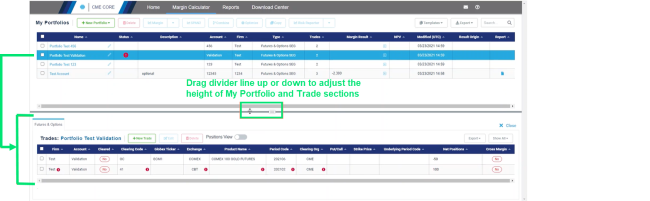
The screen lists portfolios at the top and the selected portfolio's (highlighted in blue) trade details at the bottom. The dividing line in between can be dragged up or down to adjust the section's size.
Manage Trades Grid

- To add trades to Futures & Options portfolio:
- Select the Futures & Options portfolio.
- Select +New Trade.
- In the wizard's 2. Add Trades, complete the form as needed:
- Select Future or Option.
- Choose how to enter Product Details:
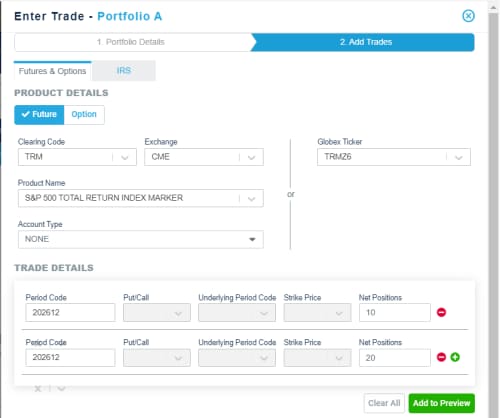
- Left Side - Begin to enter the Product Name or Clearing Code and select from the narrowed list; this automatically populates the other fields in this form.
OR - Right Side - Use the drop-down or enter the Globex Ticker symbol (example TRMZ6) to automatically populate the left side fields.
- Left Side - Begin to enter the Product Name or Clearing Code and select from the narrowed list; this automatically populates the other fields in this form.
- Enter the Trade Details (one or more trades).
- Use the drop-down or enter Period Code (when product matures) and Net Positions.
- For Options, enter relevant Put/Call and Strike details.
- Use the + to add rows for the named Product and identify additional Period Codes and Net Positions quantity. (Use the - to remove a row.)
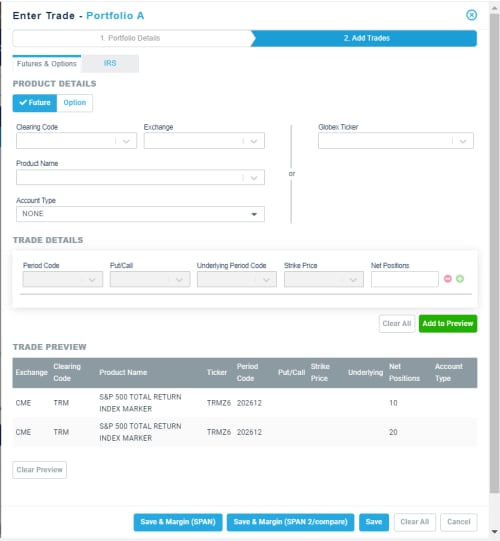
- Select Add to Preview to save entries to the Trade Preview section and clear the product and trade details fields. (The Clear All erases all entries without adding to Trade Preview.)
- If desired, add more products and trade details to this portfolio by repeating Steps a - d above.
- Select Save & Margin (SPAN) or Save & Margin (SPAN 2/compare) to close and save the form and obtain the latest end of day margin requirements. (The Save option will save without margining; Clear All removes all product details entered thus far; Cancel closes the form without saving.)
- To add trades to FX portfolio:
- Select the FX Portfolio.
- Select +New Trade.
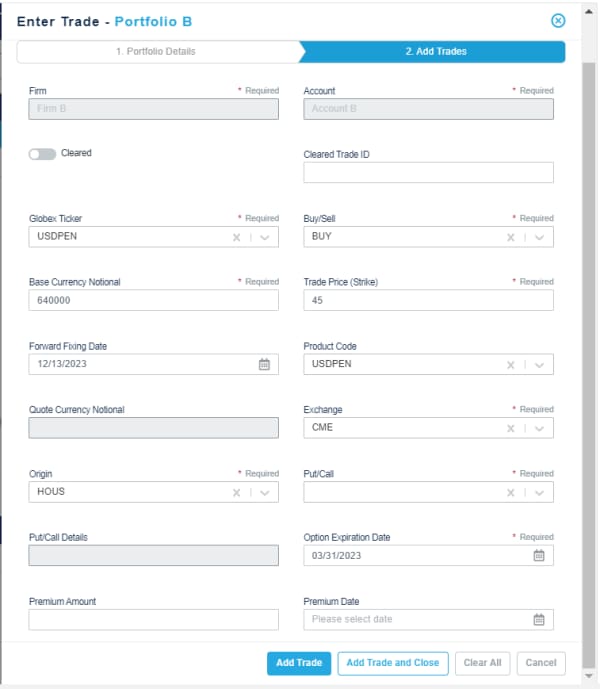
- In the wizard's 2. Add Trades, complete the form as needed:
- If Cleared, select slider and enter the Cleared Trade ID.
- Enter/Select the following:
- Globex Ticker
- Buyer/Sell
- Base Currency Notional
- Trade Price (Strike)
- Trade Price (Strike)
- Forward Fixing Date
- Product Code
- Quote Currency Notional
- Exchange
- Origin
- Put/Call Details
- Option Expiration Date
- Premium Amount
- Premium Date
- Select Add Trade. (Add Trade and Close will add the trade and close the build wizard.).
- Select Margin. The margin result appears for the FX portfolio:

- To Edit a Trade
- Check the box in the first column to select the trade.
- Select Edit.
- In the wizard's 2. Add Trades, modify the form's field contents as needed.
- Select Save when finished.
Note: if you wish to only modify the Net Position in an F&O portfolio, simply modify it inline while viewing the trade in the Trades Grid; select the green Checkmark when finished.

- To Delete Trade:
- Check the box(es) in the first column to select the trade(s).
- Select Delete.
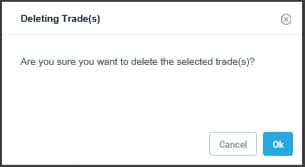
- Select OK in the confirmation dialog box:
Manage Portfolios Grid

- To Search for a Portfolio:
- Select
 and enter a search term in the box. Any portfolio that matches the term within the Name, Account or Firm fields will display.
 - To clear the search "filter," remove the entry in the Search field.
- To Delete a Portfolio:
- Check the box(es) in the first column to select the porfolio(s).
- Select Delete. CME CORE automatically purges portfolios after 30 days of inactivity.
- To Copy a Portfolio:
- Check the box in the first column to select the portfolio you want to copy.
- Select Copy. A new portfolio row appears with the name "Copy of <original portfolio>". This may be useful in comparing hypothetical portfolio edits.
- To Download Portfolio Summary or Trade Summary:
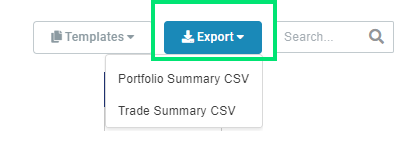
- Select Export.
- Select Portfolio Summary or Trade Summary. The file is downloaded.
 .
.
- To Export Trades:
- Open portfolio by selecting the blue hyperlink in the name field.
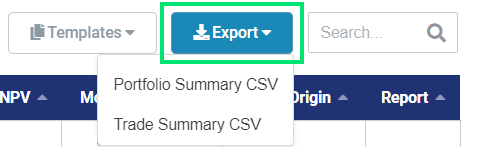
- Select Export.
- Select Portfolio Summary CSV or Trade Summary CSV. The file is downloaded.
- To Combine Portfolios:
- Check the boxes in the first column to select the portfolios you want to combine.
- Select Combine. The trades of the portfolios are combined in a new portfolio and appears at the top of the My Portfolios list.
- To Margin Portfolio(s):
- Check the box in the first column for the portfolio and select Margin (for FX) or select the drop-menu for Margin (for F&O only).
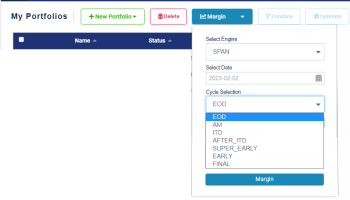
- Select Engine (SPAN or SPAN2 framework).
- Select the Date (defaults to prior day; can be up to 18 months prior).
- Select the Cycle Selection (defaults to EOD).
Cycle Name within CME Core SPAN File Cycle Code Approximate Timestamp of Risk Data AM “.a” ~10:00 AM CT ITD “.i” ~11:00 AM CT AFTER_ITD “.ai” ~1:00 PM CT SUPER_EARLY “.be” ~2:00 PM CT EARLY “.e” ~3:00 PM CT FINAL “.s” ~4:30 PM CT EOD “.c” ~5:45 PM CT - Select Margin.
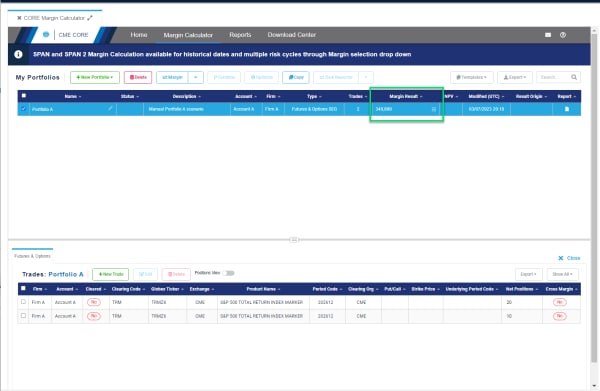
The system displays the results in the Margin Result column.
Notes:
- CME CORE returns margin requirements for this portfolio based on yesterday's end of day or date that is specified.
- Portfolios with validation errors can be margined but margin results do not include the invalid trades.
- View a breakdown of margin results by selecting Risk Reporter.
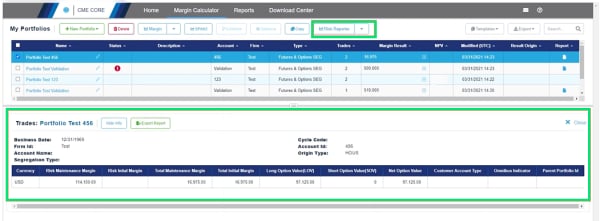
- The Risk Reporter content can be downloaded by selecting Export Result within this screen.
- To View Risk Report:
After generating margins, you may access a risk report to view a breakdown of margin results.
- Check the box(es) in the first column to select the portfolio(s) for which you want to generate a risk report.
- Select Risk Reporter. The system displays the results at the bottom part of the screen; scroll to the right to see additional columns and information.
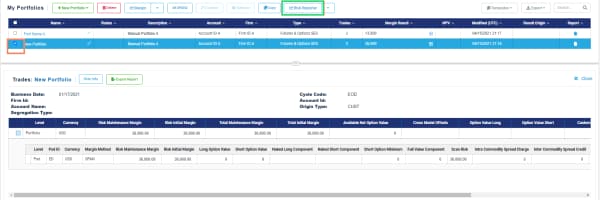
- Risk Reporter shows the risks at two levels (Portfolio and Pod) for portfolios with SPAN products and three levels (Portfolio, Pod and Product Group) for portfolios with SPAN 2 products.
- Export Report downloads the report to a .CSV file.

- Select X Close to close the report.


