User Help System
Trade Ticket Screen
Examples of how various Trade Tickets display:
Dual-Side Multi-Leg Trade Ticket with Allocations
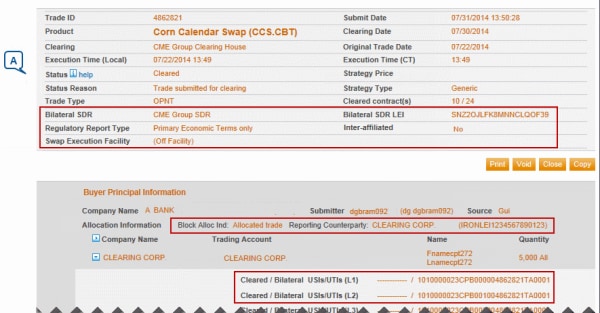
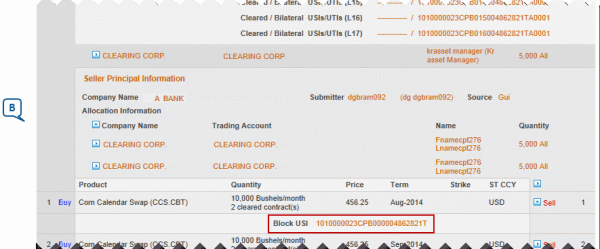

Note: Clicking  expands customer or product information. Clicking
  collapses to the summary view.
Trade Ticket Layout
- Trade / Product Information
- Fields bounded by red are specific to Swap Transactions.
- Swap Data Repository will be "(Off Facility)" for submitted OPNT trades.
- The above points are applicable to GUI entered deals; other values can appear under for tickets from API-submitted swap deals.
- Trades submitted via the GUI which are not Swap / Block trades will display date and time in the field "Original Trade Time (local)." This field will display in place of the Original Trade Date.

- Trades submitted without an execution time will be rejected.
- Buyer / Seller Principal Information
Trading Account - Non-member broker intermediary accounts and their sub-accounts appear as follows:
- Parent: Clearing member-Account number
- Trading Sub-account: Owner firm name-Sub account number
Clearing firm administrators cannot view sub-accounts assigned to parent firms. For corrections, the GCC contacts the trader risk administrator, rather than the clearing firm administrator.
- Block Alloc Ind and Reporting Counterparty display for Swap Transactions only.
- Expand each allocation (collapsed by default) to display Cleared and/or Bilateral USIs for Multi-Leg Swap Transactions.
- Each Allocation displays the Company Name, Trading Account, Name and Quantity.
- An Arrow, next to Company Name header, expands all allocations. Arrow beside specific company name, expands that allocation.
- For one-to-many allocations, there is a section for each allocation.
- If trade is Multi-Leg, a Bilateral USI will be generated for each leg.
- Summary
- A Block USI is assigned for each leg, for Swap transactions only.
- Arrow adjacent to Sell expands Summary to show Block USI.
Single Side Trades
A Single Side trade displays only the Buyer or Seller Side, and Counterparty information in the Principal Information section.
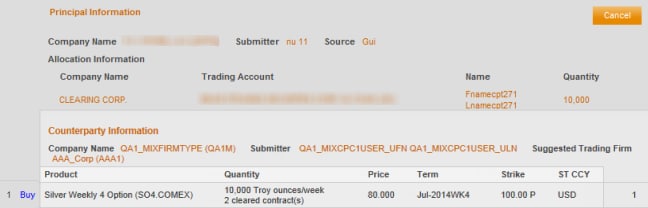
Single Side trades may also include any of the options described above. For more on accepting Single Side trades, see Claim a Transaction.


