User Help System
Manage Users
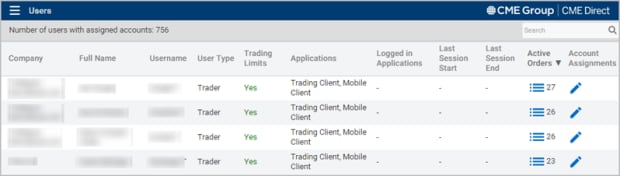
The Users window allows Clearing Member Firms to view a list of users that have permission to enter orders using accounts cleared by the Clearing Member, and displays user details, including:
- Trading Limits (Yes/No) - Indicates whether or not the user has a Trading Limit Profile assigned that limits the size of orders that can be submitted.
- Applications - Lists the CME Direct applications the user is currently logged in to (e.g. Trading Client, Mobile Client, etc).
- User Type - Defines whether the user is a Trader or a Broker.
- Last Session Start - Displays the time the user last logged on.
- Last Session End - Displays the time the user last logged off (e.g. 10:11:04 AM).
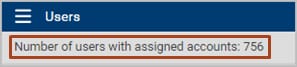
The number of users with account permissions appears above the column headers.
- To navigate the Users window:
- Click the header of any column to filter the display.
- Click a (users) row to launch the Accounts Assigned window, and display a list of accounts assigned to that user.
- In the Active Orders column, click View Order icon
 to launch Orders Owned window.
Note: The number of live (working and partially filled) orders owned by the applicable user displays next to the View Order icon .
- In the Account Assignment column, click Edit Assignments icon
 to launch the Manage Clearing Accounts window.
 - Use the Search field to filter the display by a particular Company, User (by Full Name), or User Type. The users list updates as you type.
Note: By separating search items with a space, users can search on multiple items.
- To view additional users, click the paging arrows at the bottom right of the window.

Find a User
The Find User feature allows Clearing Members to directly search for users that do not appear on the Users window.
- To find a user:
- From the Menu, click Find User.
- In the Search field, begin typing a user or company name.
The number of searchable users displays to the right of the Search field.

The user/company list auto-populates as you type.
- Optional: To manage the accounts for a particular user, select a user row, and click Manage Clearing Accounts.
Note: Selected rows highlight in orange.


