User Help System
Manage Clearing Accounts
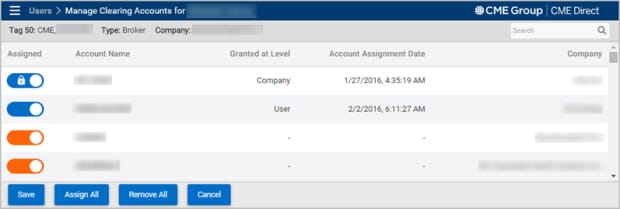
Use the Manage Clearing Accounts window to view a list of accounts (cleared by a particular Clearing Member), and to assign those accounts to a user.
- To access the Manage Clearing Accounts window:
- From the Users window, click the Edit Assignments icon
 .
.
Accounts from the company of the selected user display.
Or
- From the Assigned Accounts window, click the Manage Clearing Accounts button.
Accounts associated with the selected user display.
Or
- From the Find Users window, click the Manage Clearing Accounts button.
Accounts associated with the selected user and company display.
Assign Accounts
Member Clearing Firms use the Manage Clearing Accounts window to assign account access to users, and manage which users can trade on which account.
Note: When all the accounts for a particular user are unassigned, that user no longer appears in the Users window, but can be retrieved by with the Find User feature.
The following rules apply to account assignment switches:
- The switch is blue where a user is currently assigned to an account.
- The switch is gray where a user is currently not assigned to an account.
- The switch is orange to highlight where unsaved assignment changes have been made (i.e. where the Clearing Member changed the mapping during the current session, but not saved those changes).
- To assign accounts:
- In the Assigned column, move the switch to the ON position for a particular user.
When changed, the switch turns orange  .
.
Note: Accounts currently assigned appear at the top of the list.
The switch is disabled for Company and Desk level account assignments.
- Hover over the switch to display a "cannot modify" tool-tip.

Note: The switch for disabled Companies and Desks displays in the ON position.
- Optional: To assign all the available accounts, click Assign All.
- Optional: To remove all unsaved assigned accounts, click Remove All.
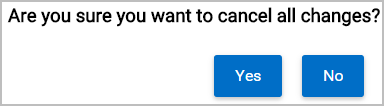
Exiting the Member Clearing Accounts window prior to saving, cancels unsaved assigned accounts.
- Click Save.
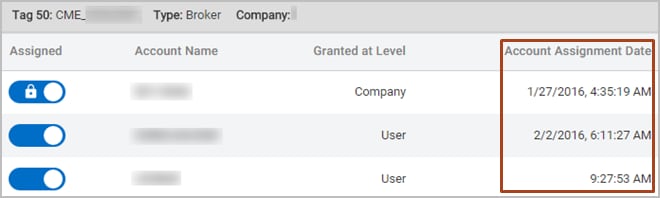
The date and time accounts were assigned appear in the Account Assignment Date column.