User Help System
Manage Maximum Quantity Display
The purpose of this test is to verify that the client system can submit an order with Display Quantity (tag 1138-DisplayQty) used in different scenarios (multiple partial fills greater and smaller than DisplayQty, with and without cancel / replace).
Pre-Registered or On-Demand Format
Note: This test is used for both Pre-Registered and On-Demand formats. The image below shows the Pre-Registered format version of the test.
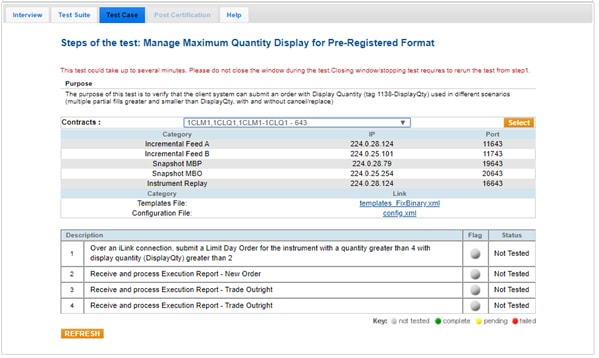
Note: If a test is not proceeding to the next step, selecting the Refresh button ( ) below the test steps may resolve the issue.
- To run a Manage Maximum Quantity Display test:
- Select a SenderComp from the drop-down and select ASSIGN if a SenderComp is not already assigned.
- Click the "START TEST" button.
Note: DO NOT select the "START TEST" button once the test process is in progress.
- Over an iLink connection, submit a Limit Day Order for the instrument with a quantity greater than 4 with display quantity (DisplayQty) greater than 2
- Select Yes or No to indicate whether your system received and processed the Execution Report - New Order.
- Select Yes or No to indicate whether your system received and processed the Execution Report - Trade Outright.
- Select Yes or No to indicate whether your system received and processed the Execution Report - Trade Outright.


