User Help System
iOrder Modification Request for Pre-Registered / On-Demand Format
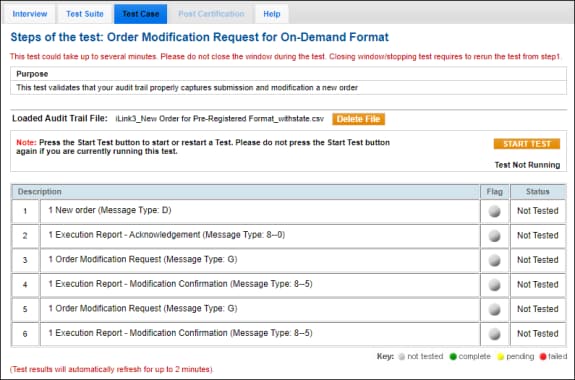
This test validates that your audit trail properly captures submission and modification a new order
- To run the Order Modification test:
- Select an Identifier in the drop-down, select ASSIGN.
See also: Audit Trail for iLink CSV - To access a test
- From the Test Suite screen, select Order Modification Request for Pre-Registered / On-Demand Format.
- Click Choose File, navigate to the location of the CSV file to be uploaded, click Upload File.
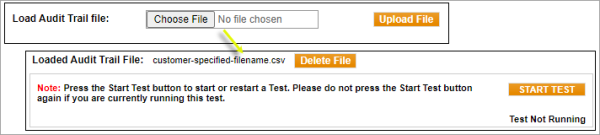
For details on preparing and formatting the audit trail file, see Submitting Files.
The audit trail message details must contain at least the following messages related to the same order. Also included (below) are iLink message specification details from which submitted audit trail messages are based.
| iLink Audit Trail Requirements- iLink - Data Definitions and Validation | Related - iLink Binary Order Entry - Message Specification |
| 1 - New Order |
iLink New Order - Single (35=D) |
| 1 - Execution Report - Acknowledgment |
iLink Execution Report - New Order (35=8, 39=0) |
| 1 - Order Modification Request |
iLink Order Cancel Replace Request - modify existing order (35=G) |
| 1 - Execution Report - Modification Confirmation |
iLink Execution Report - Modify - response to cancel replace request (35=8, 39=5) |
| 1 - Order Modification Request |
iLink Order Cancel Replace Request - modify existing order (35=G) |
| 1 - Execution Report - Modification Confirmation |
iLink Execution Report - Modify (35=8, 39=5) |
- Select START TEST.
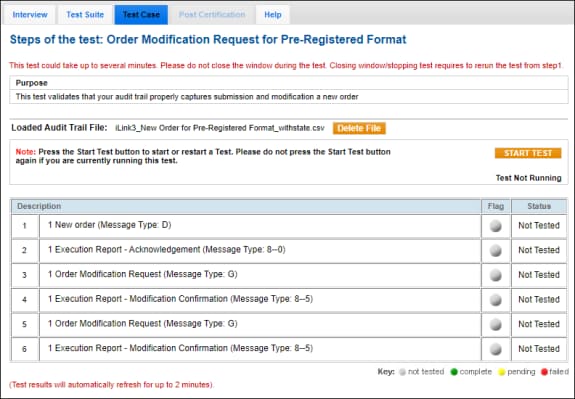
Note: This test is used for both Pre-Registered or On-Demand formats. The above image shows the Pre-Registered format version of the test.
The test will run a validation for the required message flow and data elements.
Once the test has passed, select the Test Suite tab to continue the process for the remaining test cases.
Note: DO NOT select START TEST once the test is in progress.
- If a test is not proceeding to the next step, selecting the Refresh button ( ) below the test steps may resolve the issue.
- If the Flag indicators remain gray after clicking START TEST, select REFRESH.
 On-Demand format test screen