User Help System
Manage Display Quantity
The purpose of this test is to verify that the client system can submit an order with Display Quantity (tag 1138-DisplayQty) used in different scenarios (multiple partial fills greater and smaller than DisplayQty, with and without cancel/replace)
- Select a SenderComp from the drop-down and select ASSIGN if a SenderComp is not already assigned.
- From the Contracts drop-down, select the desired contract if the contract is not already locked.
- Select the START TEST button.
Note: DO NOT select the START TEST button once the test is in progress.
Note: If a test is not proceeding to the next step, selecting the Refresh button ( ) below the test steps may resolve the issue.
Pre-Registered or On-Demand Format
Note: This test is used for both Pre-Registered and On-Demand formats. The image below shows the Pre-Registered format version of the test.
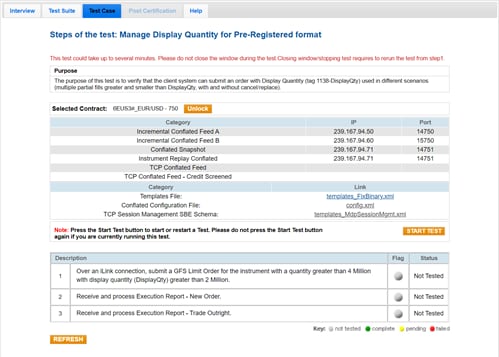
- To run a Manage Display Quantity test:
- Over an iLink connection, submit a GFS Limit Order for the instrument with a quantity greater than 4 million with display quantity (DisplayQty) greater than 2 million.
- Select Yes or No to indicate whether your system received and processed the Execution Report - New Order.
- Select Yes or No to indicate whether your system received and processed the Execution Report - Trade Outright.


