User Help System
Send an order on an existing UDS for Pre-Registered / On-Demand Format
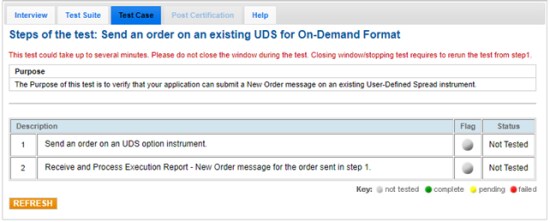
The Purpose of this test is to verify that your application can submit a New Order message on an existing User-Defined Spread instrument.
- To select the test:
- Select a SenderComp from the drop-down and select ASSIGN if not already assigned.
- From the Test Suite tab, select the linked test.
- Use the Instrument(s) drop down menu to choose an instrument and channel and click SELECT.
Note:
If a test is not proceeding to the next step, clicking the Refresh button ( ) below the test steps may resolve the issue.
Referential information is included for messages sent / received during the test.
- To run the Send an order on an existing UDS test:
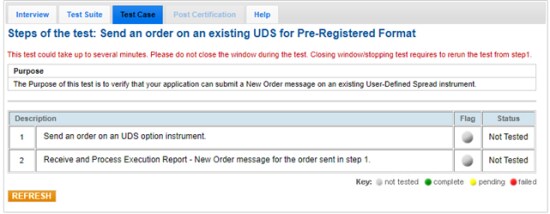
Note: This test is used for both Pre-Registered and On-Demand formats. The above image shows the Pre-Registered version of the test.
- Send an order on a UDS option instrument [35=D (iLink 3 New Order)].
- Receive and Process Execution Report - New Order (35=8, 39=0) message for the order sent in step 1.
 On-Demand format screen