User Help System
iLink Order Mass Status Request for all working orders
The following instructions illustrate the process to run and complete tests for iLink Order Mass Status Request for all working orders.
- To select the test:
- Select a SenderComp from the drop-down and select ASSIGN if not already assigned.
- From the Test Suite tab, select from the following linked tests then proceed to the specific instructions.
- iLink Order Mass Status Request for all working orders for an instrument group for Pre-Registered / On-Demand Format
- iLink Order Mass Status Request for all working orders for an instrument for Pre-Registered / On-Demand Format
- iLink Order Mass Status Request for all working orders for Pre-Registered / On-Demand Format
- Use the Instrument(s) drop down menu to choose an instrument and channel and click SELECT.
- Click the START TEST button.
Note:
If a test is not proceeding to the next step, clicking the Refresh button ( ) below the test steps may resolve the issue.
Referential information is included for messages sent / received during the test.
iLink Order Mass Status Request for all working orders for an instrument group for Pre-Registered / On-Demand Format
The Purpose of this test is to verify that customer application can submit Order Mass Status Request (35=AF) and receive Order Status Request Acknowledgement (35=8, 150=I) when obtaining status for all working order for an instrument group.
- To run the iLink Order Mass Status Request for all working orders for an instrument group test:
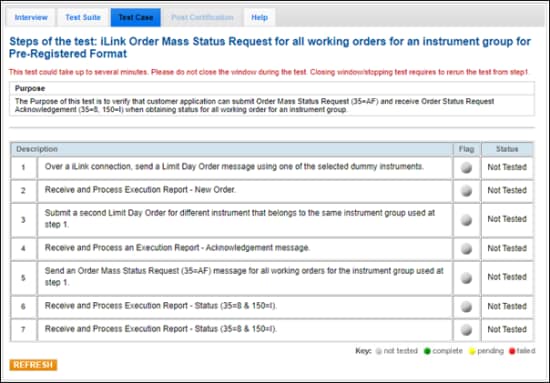
Note: This test is used for both Pre-Registered and On-Demand formats. The above image shows the Pre-Registered version of the test.
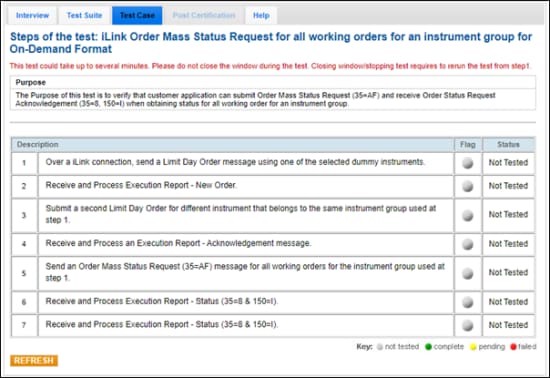
- Over a iLink connection, send a Limit Day Order [35=D (tag 40-OrdType=2, tag 59-TimeInForce=0)] message using one of the selected dummy instruments.
- Receive and Process Execution Report - New Order (35=8, 39=0).
- Submit a second Limit Day Order [35=D (tag 40-OrdType=2, tag 59-TimeInForce=0)] for different instrument that belongs to the same instrument group used at step 1.
- Receive and Process an Execution Report - Acknowledgement (35=8) message.
- Send an Order Mass Status Request (35=AF) message for all working orders for the instrument group used at step 1.
- Receive and Process Execution Report - Status (35=8 & 150=I).
- Receive and Process Execution Report - Status (35=8 & 150=I).
iLink Order Mass Status Request for all working orders for an instrument for Pre-Registered / On-Demand Format
The Purpose of this test is to verify that customer application can submit Order Mass Status Request (35=AF) and receive Order Status Request Acknowledgement (35=8, 150=I) when obtaining status for all working order for an instrument.
- To run the iLink Order Mass Status Request for all working orders for an instrument test:
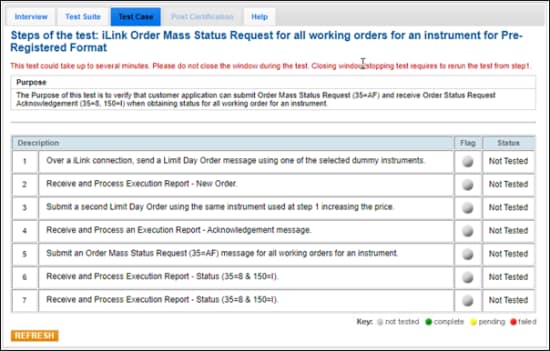
Note: This test is used for both Pre-Registered and On-Demand formats. The above image shows the Pre-Registered version of the test.
- Over a iLink connection, send a Limit Day Order [35=D (tag 40-OrdType=2, tag 59-TimeInForce=0)] message using one of the selected dummy instruments.
- Receive and Process Execution Report - New Order (35=8, 39=0).
- Submit a second Limit Day Order [35=D (tag 40-OrdType=2, tag 59-TimeInForce=0)] using the same instrument used at step 1 increasing the price.
- Receive and Process an Execution Report - Acknowledgement (35=8, 39=0) message.
- Submit an Order Mass Status Request (35=AF) message for all working orders for an instrument.
- Receive and Process Execution Report - Status (35=8 & 150=I).
- Receive and Process Execution Report - Status (35=8 & 150=I).
 On-Demand format screen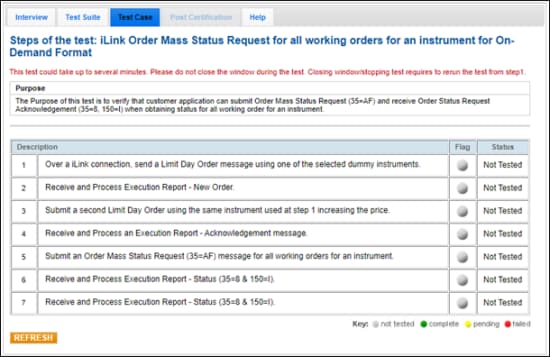
iLink Order Mass Status Request for all working orders for Pre-Registered / On-Demand Format
The Purpose of this test is to verify that customer application can submit Order Mass Status Request (35=AF) and receive Order Status Request Acknowledgement (35=8, 150=I) when obtaining status for all working order.
- To run the iLink Order Mass Status Request Test for Pre-Registered / On-Demand format:
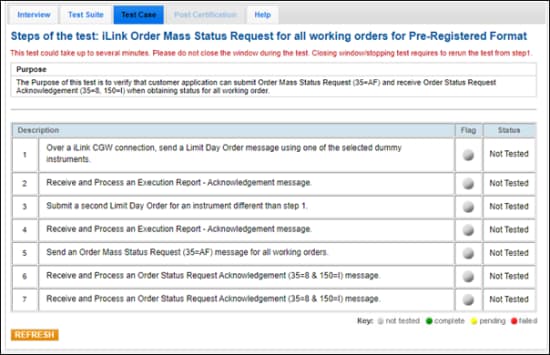
Note: This test is used for both Pre-Registered and On-Demand formats. The above image shows the Pre-Registered version of the test.
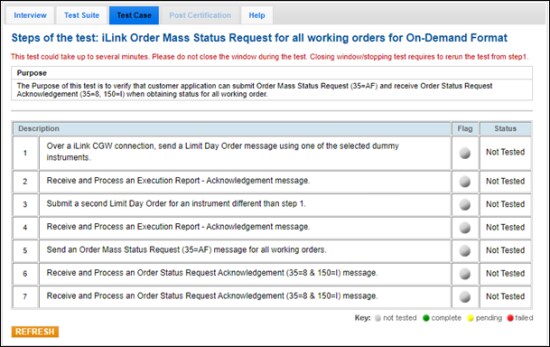
- Over a iLink CGW connection, send a Limit Day Order [35=D (tag 40-OrdType=2, tag 59-TimeInForce=0)] message using one of the selected dummy instruments.
- Receive and Process an Execution Report - Acknowledgement (35=8, 39=0) message.
- Submit a second Limit Day Order [35=D (tag 40-OrdType=2, tag 59-TimeInForce=0)] for an instrument different than step 1.
- Receive and Process an Execution Report - Acknowledgement (35=8, 39=0) message.
- Send an Order Mass Status Request (35=AF) message for all working orders.
- Receive and Process an Order Status Request Acknowledgement (35=8 & 150=I) message.
- Receive and Process an Order Status Request Acknowledgement (35=8 & 150=I) message.