User Help System
Order Cancel / Cancel-Replace Tests
The following instructions illustrate the process to run and complete order cancel and cancel replace tests.
- To select the test:
- Select a SenderComp from the drop-down and select ASSIGN if not already assigned.
- From the Test Suite tab, select from the following linked tests then proceed to the specific instructions.
- Multiple Cancel Replace for Pre-Registered / On-Demand Format
- Cancel-Replace with IFM for Pre-Registered / On-Demand Format
- Order Cancel Replace without OrderID for Pre-Registered / On-Demand Format
- Order Cancel without OrderID for Pre-Registered / On-Demand Format
- Use the Instrument(s) drop down menu to choose an instrument and channel and click SELECT.
- Click the START TEST button.
Note:
If a test is not proceeding to the next step, clicking the Refresh button ( ) below the test steps may resolve the issue.
Referential information is included for messages sent / received during the test.
Multiple Cancel Replace for Pre-Registered / On-Demand Format
The purpose of this test is to verify that the client system can submit an order and then modify it several times (price, quantity) with and without change of priority in the book.
- To run the Multiple Cancel Replace test:
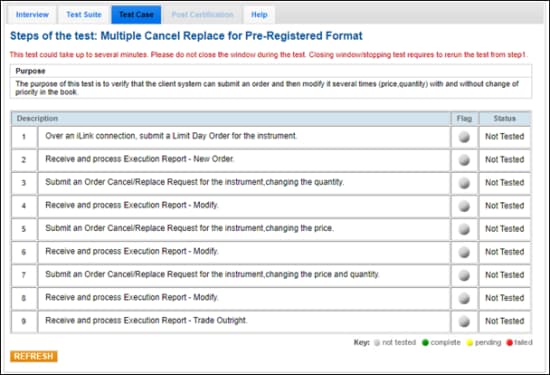
Note: This test is used for both Pre-Registered and On-Demand formats. The above image shows the Pre-Registered version of the test.
- Over an iLink connection, submit a Limit Day Order [35=D (tag 40-OrdType=2, tag 59-TimeInForce=0)] for the instrument.
- Receive and process Execution Report - New Order (35=8, 39=0).
- Submit an Order Cancel/Replace Request (35=G) for the instrument, changing the quantity (tag 38-OrderQty).
- Receive and process Execution Report - Modify (35=8, 39=5).
- Submit an Order Cancel/Replace Request (35=G) for the instrument, changing the price (tag 44-Price).
- Receive and process Execution Report - Modify (35=8, 39=5).
- Submit an Order Cancel/Replace Request (35=G) for the instrument, changing the price (tag 44-Price) and quantity (tag 38-OrderQty).
- Receive and process Execution Report - Modify (35=8, 39=5).
- Receive and process Execution Report - Trade Outright (35=8, 39=1,2)
 On-Demand format screen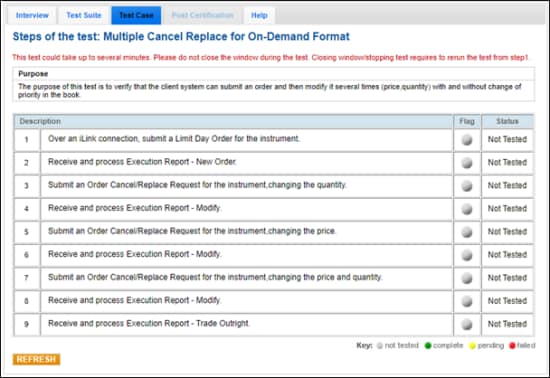
Cancel-Replace with IFM for Pre-Registered / On-Demand Format
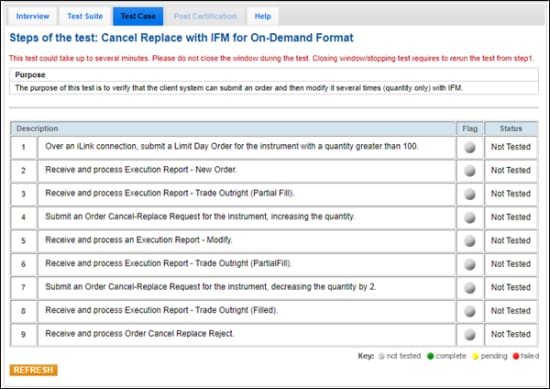
The purpose of this test is to verify that the client system can submit an order and then modify it several times (quantity only) with IFM.
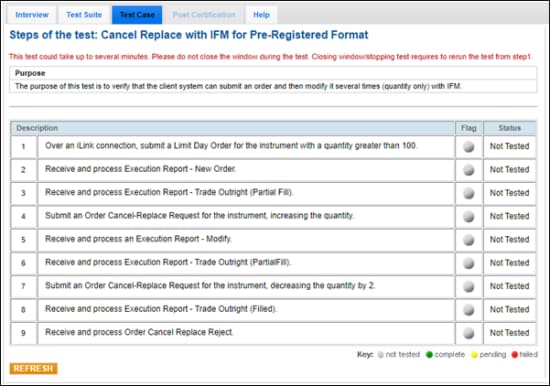
Note: This test is used for both Pre-Registered and On-Demand formats. The above image shows the Pre-Registered version of the test.
- To run the Cancel-Replace with IFM test:
- Over an iLink connection, submit a Limit Day Order [35=D (tag 40-OrdType=2, tag 59-TimeInForce=0)] for the instrument with a quantity (tag 38-OrderQty) greater than 100.
- Receive and process Execution Report - New Order (35=8, 39=0).
- Receive and process Execution Report - Trade Outright [35=8, 39=1,2 (tag 39-OrdStatus=1)] (Partially Filled).
- Submit an Order Cancel-Replace Request for the instrument, increasing the quantity (tag 38-OrderQty).
- Receive and process an Execution Report - Modify.
- Receive and process Execution Report - Trade Outright (Partial Fill).
- Submit an Order Cancel-Replace Request for the instrument, decreasing the quantity (tag 38-OrderQty) by 2.
- Receive and process Execution Report - Trade Outright [35=8, 39=1,2 (tag 39-OrdStatus=2)] (Filled).
- Receive and process Order Cancel Replace Reject (35=9, 434=2).
Order Cancel Replace without OrderID for Pre-Registered / On-Demand Format
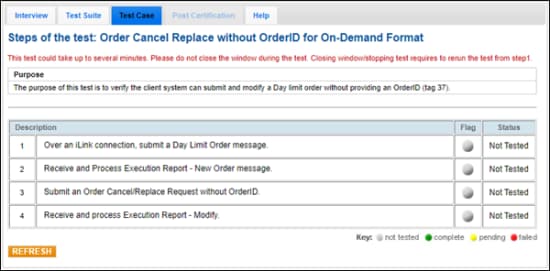
The purpose of this test is to verify the client system can submit and modify a Day limit order without providing an OrderID (tag 37).
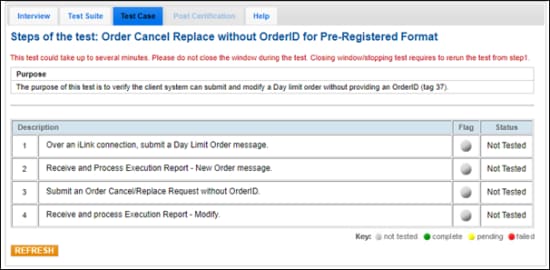
Note: This test is used for both Pre-Registered and On-Demand formats. The above image shows the Pre-Registered version of the test.
- To run the Order Cancel Replace without OrderID test:
- Over an iLink connection, submit a Day Limit Order [35=D (tag 40-OrdType=2, tag 59-TimeInForce=0)] message.
- Receive and Process Execution Report - New Order (35=8, 39=0) message.
- Submit an Order Cancel/Replace Request (35=G) without OrderID (tag 37).
- Receive and process Execution Report - Modify (35=8, 39=5).
Order Cancel without OrderID for Pre-Registered / On-Demand Format
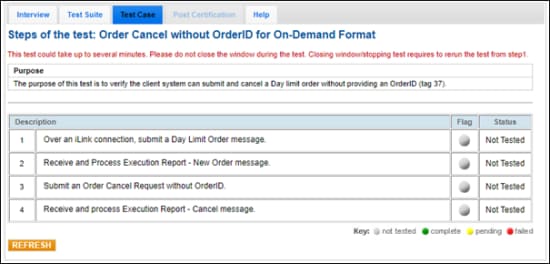
The purpose of this test is to verify the client system can submit and cancel a Day limit order without providing an OrderID (tag 37).
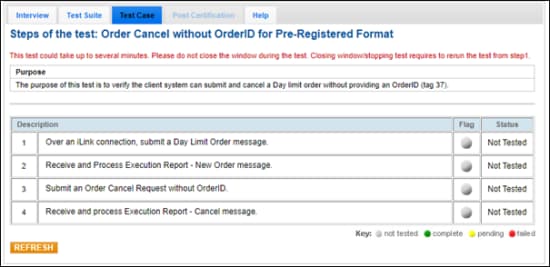
Note: This test is used for both Pre-Registered and On-Demand formats. The above image shows the Pre-Registered version of the test.
- To run the Order Cancel without OrderID test:
- Over an iLink connection, submit a Day Limit Order [35=D (tag 40-OrdType=2, tag 59-TimeInForce=0)] message.
- Receive and Process Execution Report - New Order (35=8, 39=0) message.
- Submit an Order Cancel Request (35=F) without OrderID (tag 37).
- Receive and process Execution Report - Cancel (35=8, 39=4) message.