User Help System
Cancel on Behalf using Order Cancel Request
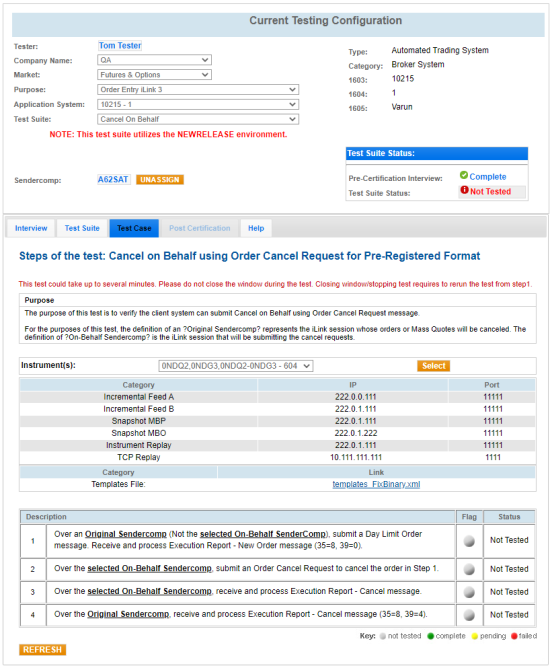
The purpose of this test is to verify the client system can submit Cancel on Behalf using an Order Cancel Request message.
For the purposes of this test, the definition of an Original SenderComp represents the iLink session whose orders or Mass Quotes will be canceled. The definition of On-Behalf SenderComp is an additional iLink session that will submit the cancel requests.
- To access the Cancel on Behalf - Order Cancel Request test:
- Select a SenderComp from the drop-down and select ASSIGN if an Instrument is not already assigned.
- From the Instrument(s) drop-down, Select the desired instrument if it is not already locked.
Test cases also require configuration of client system sessions using Category, IP and Port information provided on the AutoCert+ test screens.
- Select the START TEST button.
Note: DO NOT select the START TEST button once the test is in progress. If a test is not proceeding to the next step, selecting the Refresh button ( ) below the test steps may resolve the issue.
Pre-Registered or On-Demand Format
This test is used for both Pre-Registered and On-Demand formats. The below instructions show the Pre-Registered format.
- To run a Cancel on Behalf - Order Cancel Request test:
- Over an Original SenderComp (Not the selected On-Behalf SenderComp), submit a Limit Day Order (35=D) message.
- Receive and process an Execution Report - New Order message (35=8, 39=0).
Select (Yes or No) to indicate whether the Execution Report - New Order message was processed.
- Over the selected On-Behalf SenderComp, submit an Order Cancel Request (35=F) to cancel the order in Step 1.
- Over the selected On-Behalf SenderComp, receive and process the Execution Report - Cancel (35=8, 39=4) message.
- Over the Original SenderComp , receive and process the Execution Report - Cancel message (35=8, 39=4).
Select (Yes or No) to indicate whether the Execution Report - Cancel message was processed.