iLink Order Mass Action Request by Instrument
The Purpose of this test is to verify that customer application can submit an Order Mass Action Request (35=CA) message to cancel working orders by instrument.
Pre-Registered or On-Demand Format
Note: This test is used for both Pre-Registered and On-Demand formats. The below image shows the Pre-Registered format version of the test.
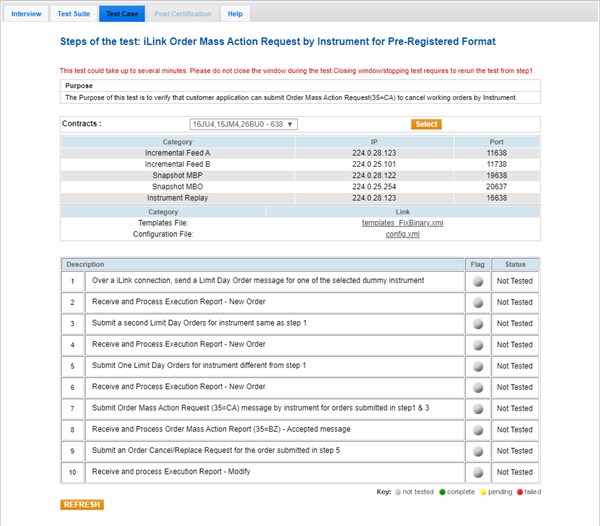
Note: If a test is not proceeding to the next step, selecting the Refresh button ( ) below the test steps may resolve the issue.
- To run an iLink Order Mass Action Request by Instrument test:
- Select a SenderComp from the drop-down and select ASSIGN if a SenderComp is not already assigned.
- From the Contracts drop-down, select the desired contract if the contract is not already locked.
- Select the START TEST button.
Note: DO NOT select the START TEST button once the test is in progress.
- Over a iLink connection, send a Limit Day Order message for one of the selected dummy instrument.
- Select Yes or No to indicate whether your system received and processed the Execution Report - New Order.
- Submit a second Limit Day Orders for the same instrument as step 1.
- Select Yes or No to indicate whether your system received and processed the Execution Report - New Order.
- Submit One Limit Day Order for an instrument different from step 1.
- Select Yes or No to indicate whether your system received and processed the Execution Report - New Order.
- Submit Order Mass Action Request (35=CA) message by instrument for orders submitted in step 1 & 3.
- Enter the following tag values to indicate that your system received and processed the Order Mass Action Report (35=BZ) - Accepted message:
- tag 1374-MassActionScope
- tag 1375-MassActionResponse
Note: The next 2 steps are only required for client systems that support Order Cancel-Replace functionality.
- Submit an Order Cancel/Replace Request for the order submitted in step 5.
- 1Select Yes or No to indicate whether your system received and processed the Execution Report - Modify.