Strategy Simulator User Guide
Build a Strategy
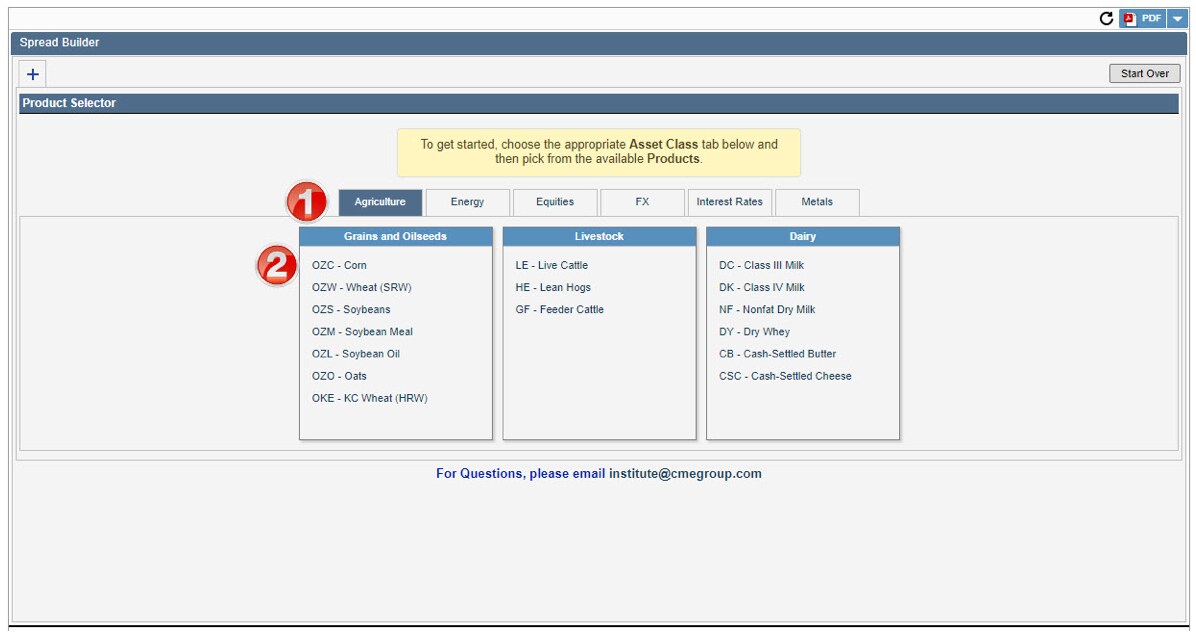
1. Select Asset Class
2. Select desired Product
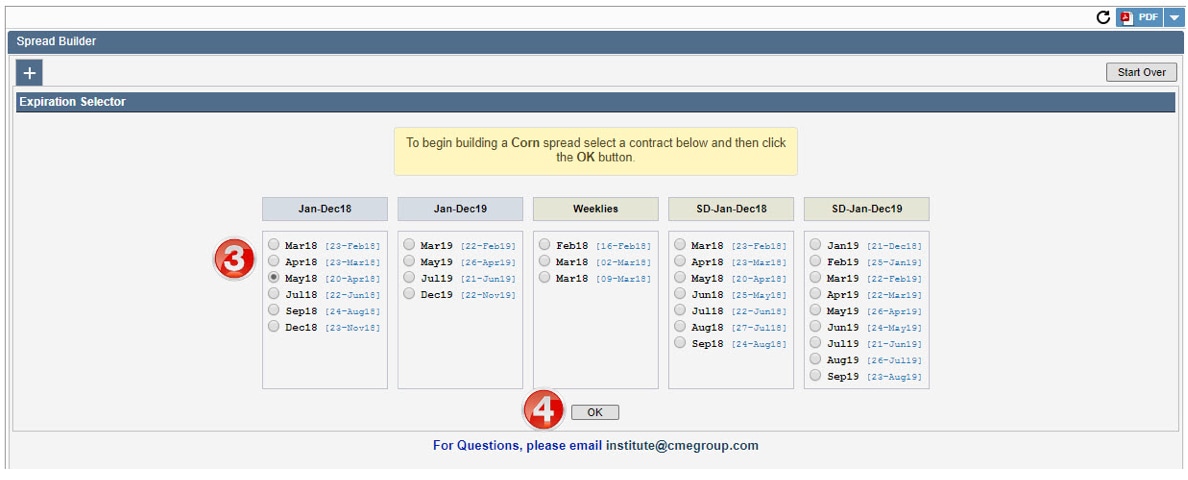
3. Select the Contract Expiration (expirations will vary by product)
4. Click OK
This screen allows you to build a spread using any combination of options, futures, or physical positions.
5. Click the dropdown arrow to add the desired instrument
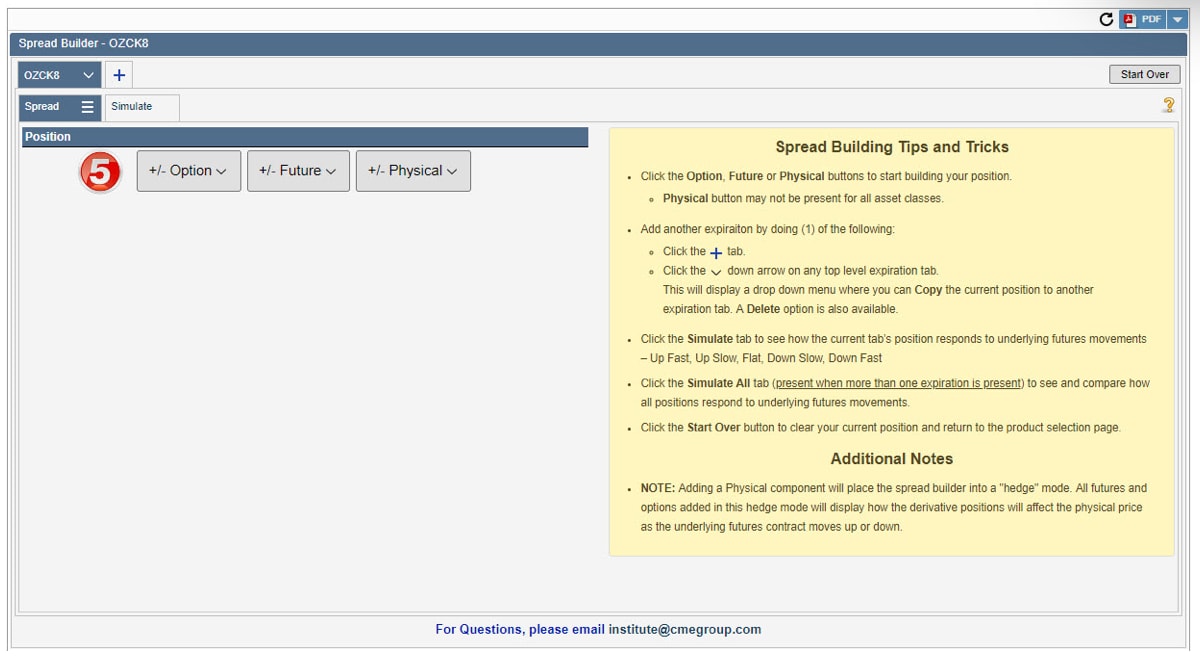
Option – allows users to enter an option position
Future – allows users to enter a futures position
Physical – allows users to enter an existing cash position and build option and future hedges around the cash position
Building an Options Strategy
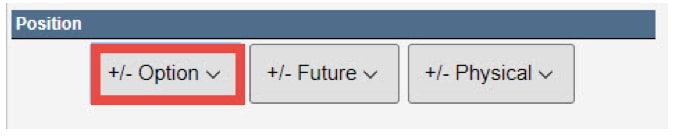
5. Select Option from the Spread Builder screen
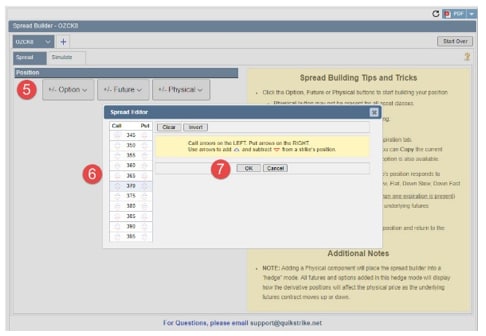
6. Select the desired strike prices
- Call arrows on the left. Put arrows on the right
- Use up arrows to add to the position
- Use down arrow to subtract from the position
7. Click OK
Building a Futures Strategy
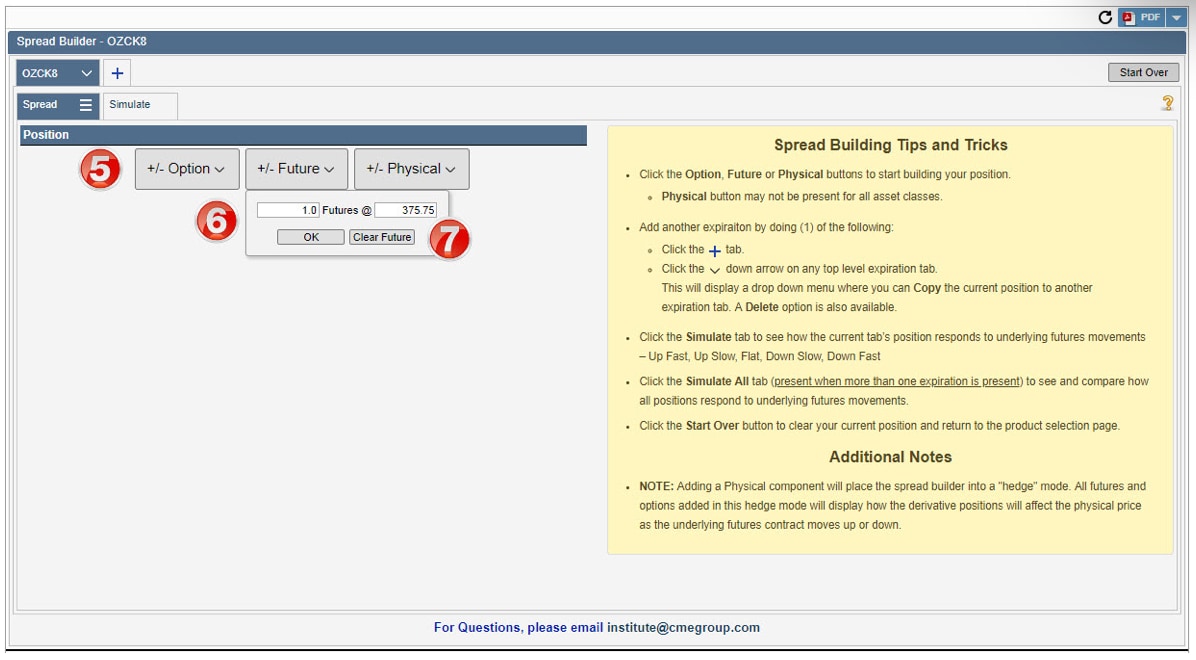
5. Select Future from the Spread Builder screen
6. Enter the Quantity and Futures price
- Positive quantity indicates Long position
- Negative quantity indicates Short position
7. Click OK
Building a Physical Position
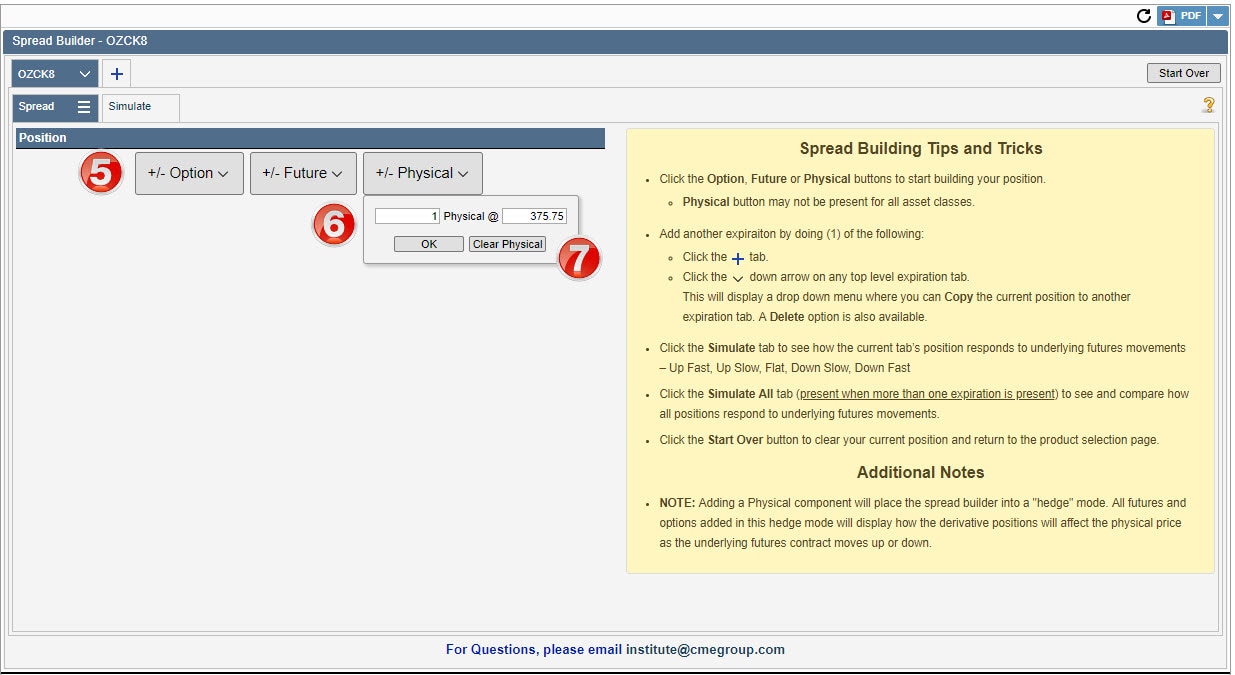
5. Select Physical from the Spread Builder screen
6. Enter the Quantity and Physical price
- Positive quantity indicates Long position
- Negative quantity indicates Short position
7. Click OK
- Clear Physical will close the dialog box
Running Simulation Scenarios
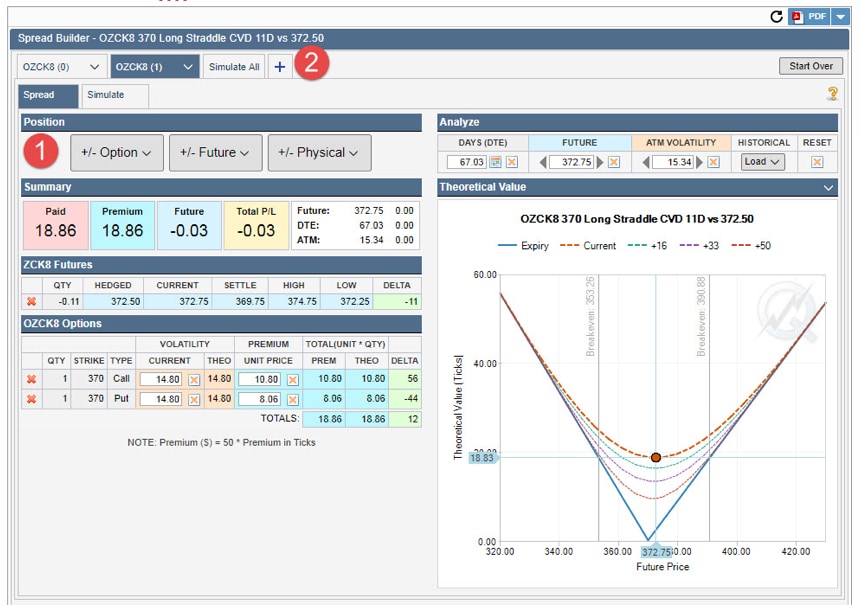
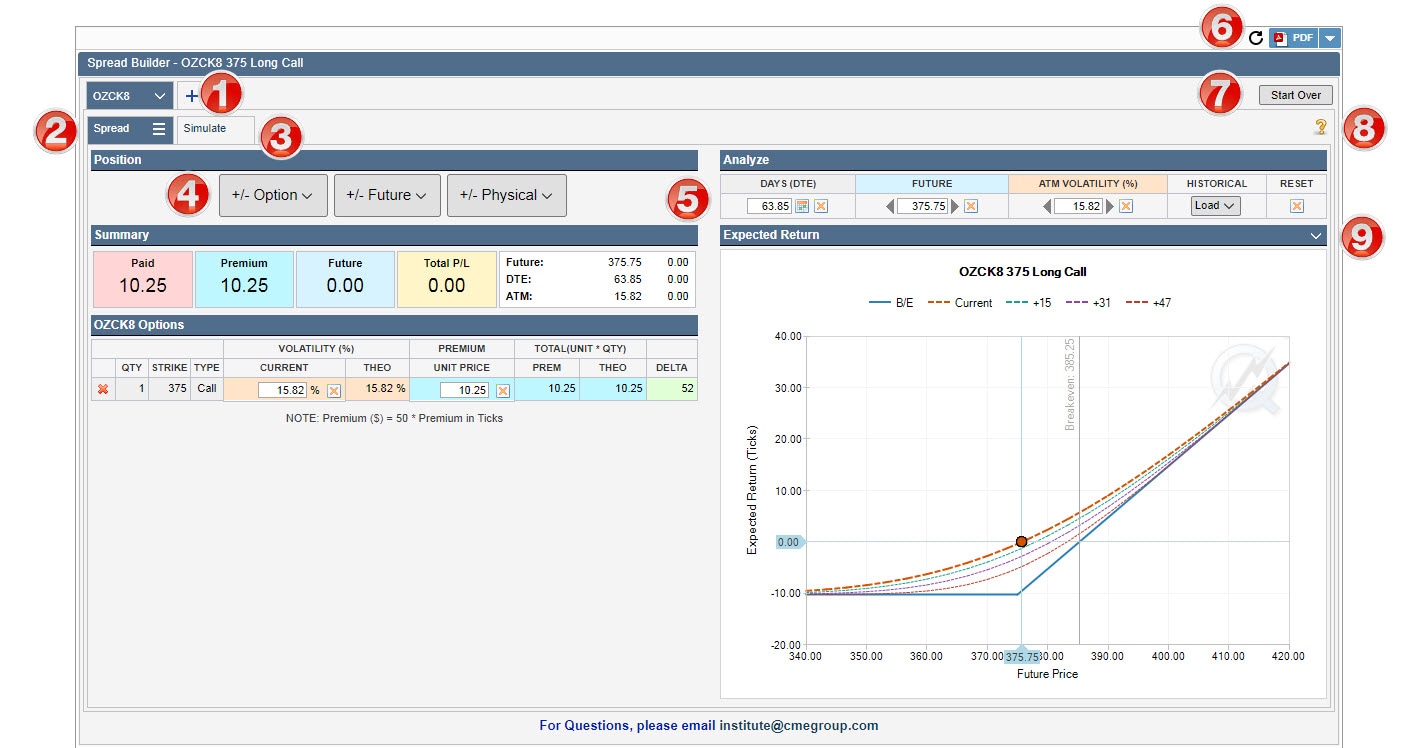
1. Add an additional strategy to analyze. If more than one strategy is built. Simulate All tab will be available, allowing comparison between the strategies.
2. Adjust chart settings – specifically view profit and loss in ticks or dollar terms
3. Run the strategy through hypothetical, monte carlo underlying scenarios.
4. Add additional instruments to the current strategy.
5. Allows user to view strategy summary, profit and loss charting, analyze and manually adjust days til expiration (DTE), Future price, ATM (at the money) Volatility, Historical market conditions, Reset.
6. Creates PDF of current view
7. Start Over – clears current strategy
8. Help menu
9. View strategy values in terms of Theoretical Value, Delta, Gamma, Vega or Theta
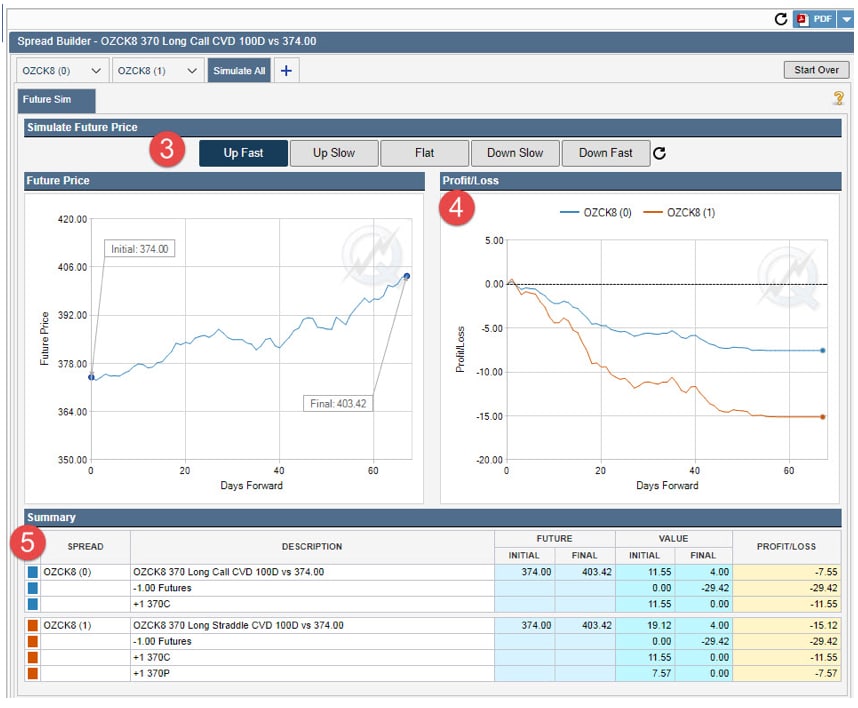
To Run an Underlying Simulation
1. Build your desired strategy
2. Select the Simulate tab
3. Select to run position through one of the hypothetical, Monte-Carlo scenarios. These scenarios are simulations targeted to follow a price path. Simulation does not affect the
a. Up Fast – simulates a fast upward underlying move
b. Up Slow – simulates a slow upward underlying move
c. Flat – simulates a relatively unchanged underlying move
d. Down Slow – simulates a slow downward underlying move
e. Down Fast – simulates a slow downward underlying move