Trading Simulator How-To Guide: Order Types
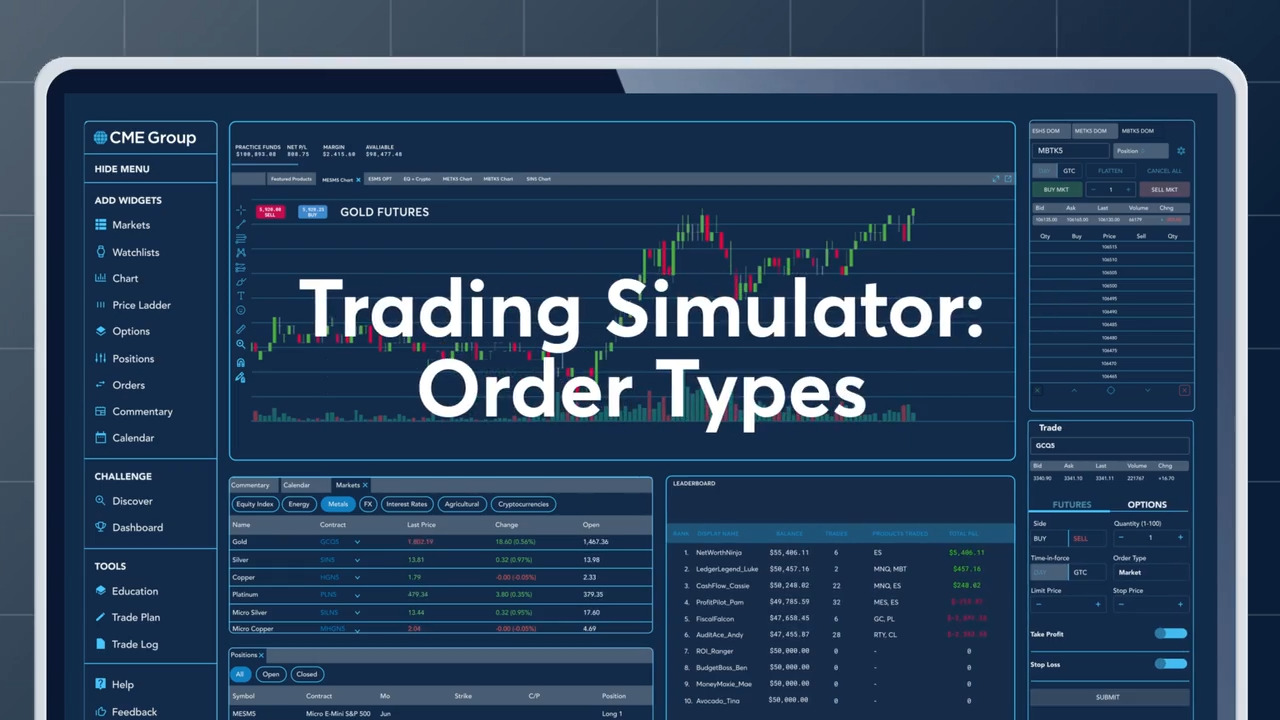
Mastering order types in the Trading Simulator
In the Trading Simulator, understanding and effectively using different order types is crucial for success. This guide walks you through the three primary order types: limit, stop and stop-limit orders, illustrating their unique benefits and use cases.
Limit orders
Limit orders allow you to set a specific price at which you want to buy or sell a futures contract. For example, if you set a limit order to buy at $6,200, your order will only be executed if the market reaches or goes below that price. This type of order is useful for traders who want to enter the market at a precise price point, ensuring they don't pay more or sell for less than they're willing to.
Stop orders
Stop orders are used to protect your positions from adverse market movements. You define a trigger price, and once that price is reached, the order becomes a market order. For instance, if you set a stop order to sell at $6,250, it will execute as soon as the market price hits that level, helping you limit potential losses. Stop orders are particularly useful for setting a stop-loss, ensuring you have a clear exit strategy in volatile markets.
Stop-limit orders
Stop-limit orders combine the features of stop and limit orders, offering more control over your trades. You set both a stop price and a limit price. When the stop price is reached, the order turns into a limit order, which can only be executed at the limit price or better. This means if the market price hits your stop but then spikes, your order won't be filled at a price you find unfavorable. Stop-limit orders are perfect for traders who want to protect their positions while also setting a precise price for execution.
Placing orders in the Trading Simulator
To place these orders in the Trading Simulator, navigate to the order ticket widget. Select the desired futures contract and choose the order type from the dropdown menu. Enter the quantity and price, and select the time in force, either DAY or GTC (Good ‘Til Cancel).
- Limit orders: Set your desired price.
- Stop orders: Define the stop price.
- Stop-limit orders: Input both the stop and limit prices.
Once you've set your parameters, click "Submit order" to execute. The Trading Simulator offers a risk-free environment to practice these strategies and refine your trading skills.
Example Scenarios
Limit order example
Suppose you are interested in buying E-mini S&P 500 (ES) futures but are concerned about the current market price. You set a limit order to buy at $6,200. If the market price drops to or below $6,200, your order will be executed. This ensures you get the price you want, providing a level of control and precision in your trading decisions.
Stop order example
Imagine you have a long position in WTI Crude Oil (CL) futures and are worried about a sudden price drop. You set a stop order to sell at $62.50. If the market price falls to $62.50, your order will be executed as a market order, helping you exit the position and limit your losses. This is a powerful tool for managing risk and maintaining a disciplined trading approach.
Stop-limit order example
Consider a scenario where you have a short position in Gold (GC) futures and want to protect yourself from a price spike. You set a stop-limit order to buy at a stop price of $3,600 and a limit price of $3,595. If the market price hits $3,600, your order will become a limit order, and it will only execute if the price is $3,595 or better. This dual control mechanism ensures you have a clear exit strategy while also setting a precise price point for execution.
Conclusion
By mastering the use of limit, stop and stop-limit orders in the Trading Simulator, you can gain confidence in managing your positions and making informed trading decisions. These order types provide the flexibility and control necessary to navigate the complexities of the futures market. Whether you are a beginner or an experienced trader, the Trading Simulator is an invaluable tool for refining your trading skills and strategies.
For more information and to get started, visit the Trading Simulator.