Trading Simulator How-To Guide: Amending Orders
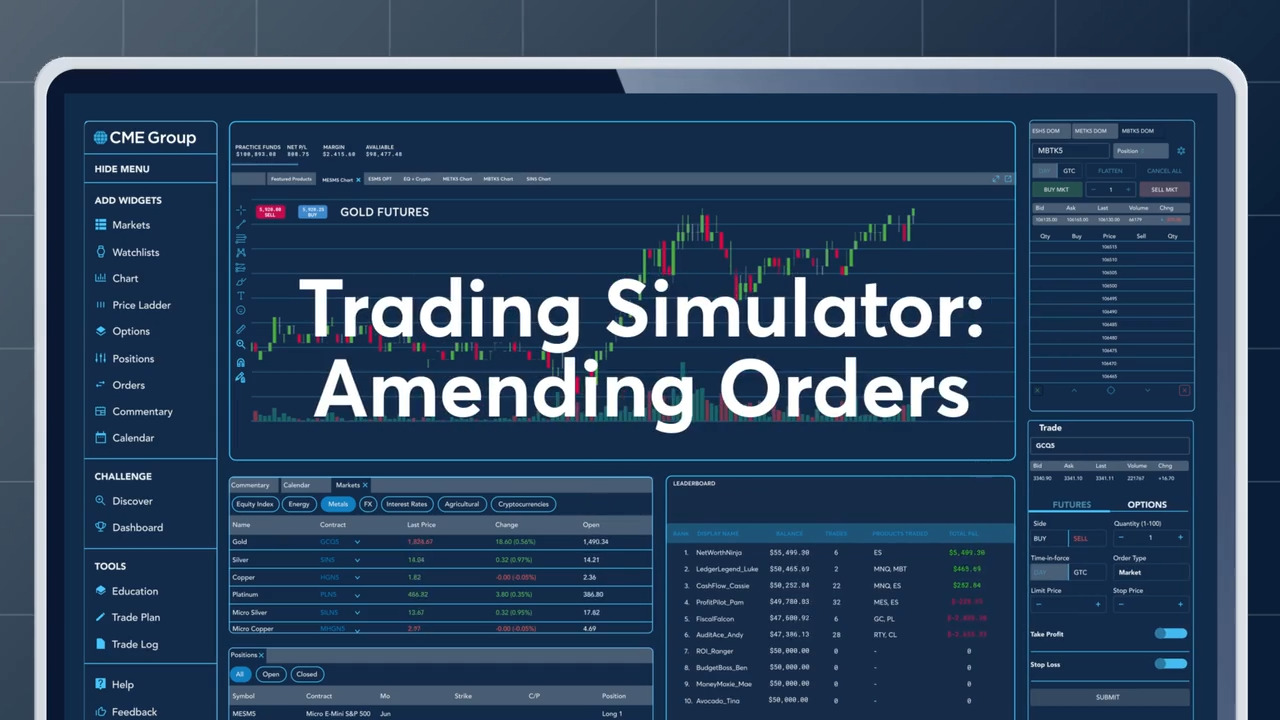
Amending orders with the Trading Simulator
In the fast-paced world of derivatives trading, market conditions can change rapidly. Whether you're a seasoned trader or just starting out, the ability to adapt and adjust your working orders is crucial. Our Trading Simulator offers two efficient methods to help you manage your trades seamlessly and effectively.
Using the orders widget
The first method involves the orders widget, which is designed for detailed modifications and accuracy. Here’s how you can use it:
- Navigate to the orders widget in your Trading Simulator workspace.
- Scroll to the actions column.
- Click the amend button.
- Make your precise adjustments in the order ticket that appears.
This method is ideal for traders who need to make detailed changes to their orders, ensuring that every aspect is accurate and aligned with their trading strategy.
Utilizing the price ladder for on-the-fly changes
For even faster, on-the-fly adjustments, the price ladder is your go-to tool. This feature provides real-time bid and ask prices, allowing you to see market liquidity and potential price points for trading decisions. Here’s how you can use it:
- Locate the price ladder widget in your workspace.
- Find the working order you want to adjust.
- Click and drag the order to a new price level.
- Release the mouse to confirm the new price.
The price ladder is particularly useful for traders who need to react to volatility or sudden shifts in market conditions. By using this intuitive feature, you can quickly adjust your orders without navigating through multiple screens, keeping you agile and responsive in a dynamic trading environment.
Trading examples
Price increase example
Imagine you are a trader with a long position in WTI Crude Oil (CL) futures. You notice that the market is trending upwards, and you want to adjust your stop loss to lock in some gains. Using the orders widget:
- Locate your WTI Crude Oil futures order.
- Scroll to the actions column and click the Amend button.
- Adjust the stop loss price to a higher level.
- Submit the amended order.
Price decrease example
Consider a scenario where you have a short position in the E-mini S&P 500 (ES) futures. The market is showing signs of a downturn, and you want to quickly adjust your take profit level. Using the price ladder:
- Locate your E-mini S&P 500 futures order on the price ladder.
- Click and drag the order to a lower price level.
- Release the mouse to confirm the new level.
These examples illustrate how the orders widget and price ladder can help you manage risk and capitalize on market opportunities.
Benefits of efficient order management
Efficient order management is essential for several reasons:
- Reacting to volatility: Markets can be highly volatile, and the ability to quickly adjust orders may help you mitigate potential losses in the Simulator.
- Seizing opportunities: Rapid market shifts can present new opportunities. The price ladder allows you to seize these opportunities in the Simulator without delay.
- Enhancing accuracy: The orders widget ensures that your modifications are precise, reducing the risk of errors.
- Improving trade execution: Both tools help you execute trades more effectively, leading to more precise strategy and execution within the Simulator.
Conclusion
Whether you're a beginner or an experienced trader, our Trading Simulator tools, such as the orders widget and price ladder, can improve your risk management and help you seize market opportunities to stay ahead in a dynamic market.
For more information and to get started, visit the Trading Simulator.